Spark Deployment with Tanium
This guide helps you to configure Xshield Spark on Tanium
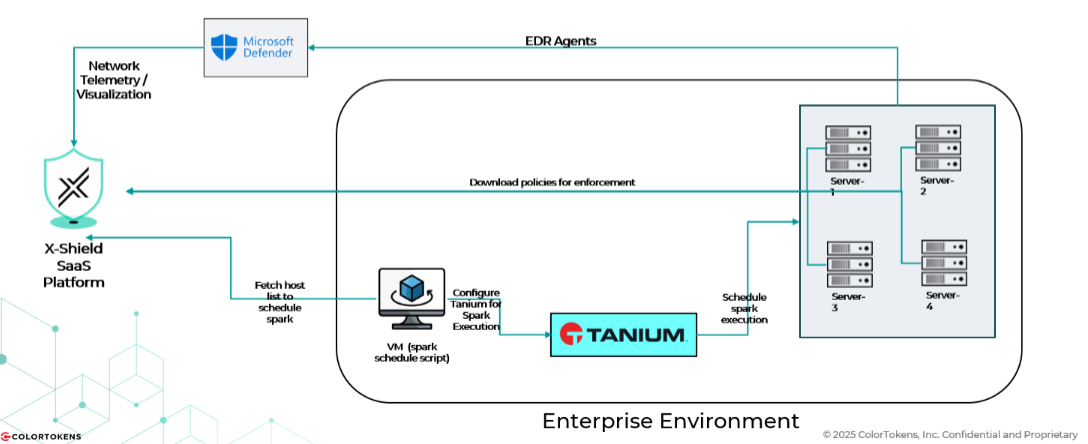
Below is an architecture of how Xshield Spark integrates with Tanium
Prerequisites
- Xshield API Credentials (
*.pemandconfig.yamlfiles) - EDR agents installed on endpoint devices & EDR Integration is enabled for atleast one of the supported EDR platforms on Xshield tenant
- A dedicated Hardware with Windows 10/11 OS that has connectivity to Tanium Server's REST APIs. We call it as Spark Controller VM
- Powershell with Administrative priviledges on the Spark Controller VM
- Network connectivity to XShield ColorTokens platform from Spark Controller VM
- If any EDR is installed on the Spark controller VM, the folder in which the below XShield Spark Tanium package is extracted must be whitelisted.
- Firewall rules to allow communication between Tanium Server and EDR clients
The following firewall rules are mandatory and critical for policy enforcement when using Tanium.
Expand to view the Firewall rules to be configured
| Purpose | Direction | Protocol | Port(s)/Process | Notes |
|---|---|---|---|---|
| Client-to-Server Communication | Outbound | TCP | 17472 | This is the primary outbound port for clients to connect to the Tanium Server, Tanium Cloud, or Zone Server. |
| Peer-to-Peer Communication | Inbound & Outbound | TCP | 17472 | This is a critical, unique requirement for Tanium. Clients must be able to communicate with other clients on the same local network for the peer-to-peer architecture to function. This port must be open for both inbound and outbound traffic between Tanium clients on the same subnet. |
| DNS Resolution | Outbound | UDP/TCP | 53 | Clients need to be able to resolve the FQDNs of the Tanium Server or Tanium Cloud. |
| SSL/TLS for Certificate Validation | Outbound | TCP | 443 | Required for the client to validate certificates, especially when communicating with the cloud platform. |
| (OPTIONAL)Client API (Loopback) | Inbound | TCP | 17473 | Used for the Tanium Client API on the loopback interface (127.0.0.1). This is typically an internal-only port and usually does not require a specific firewall rule. |
| (OPTIONAL) Direct Connect | Outbound | TCP | 17475 | Required for internal clients to establish a direct connection to the Module Server for features like remote screen sharing. |
| (OPTIONAL) Direct Connect via Zone Server | Outbound | TCP | 17486 | Required for clients located outside the corporate network to establish a direct connection to a Zone Server. |
Deployment Steps
1. Download Spark Package
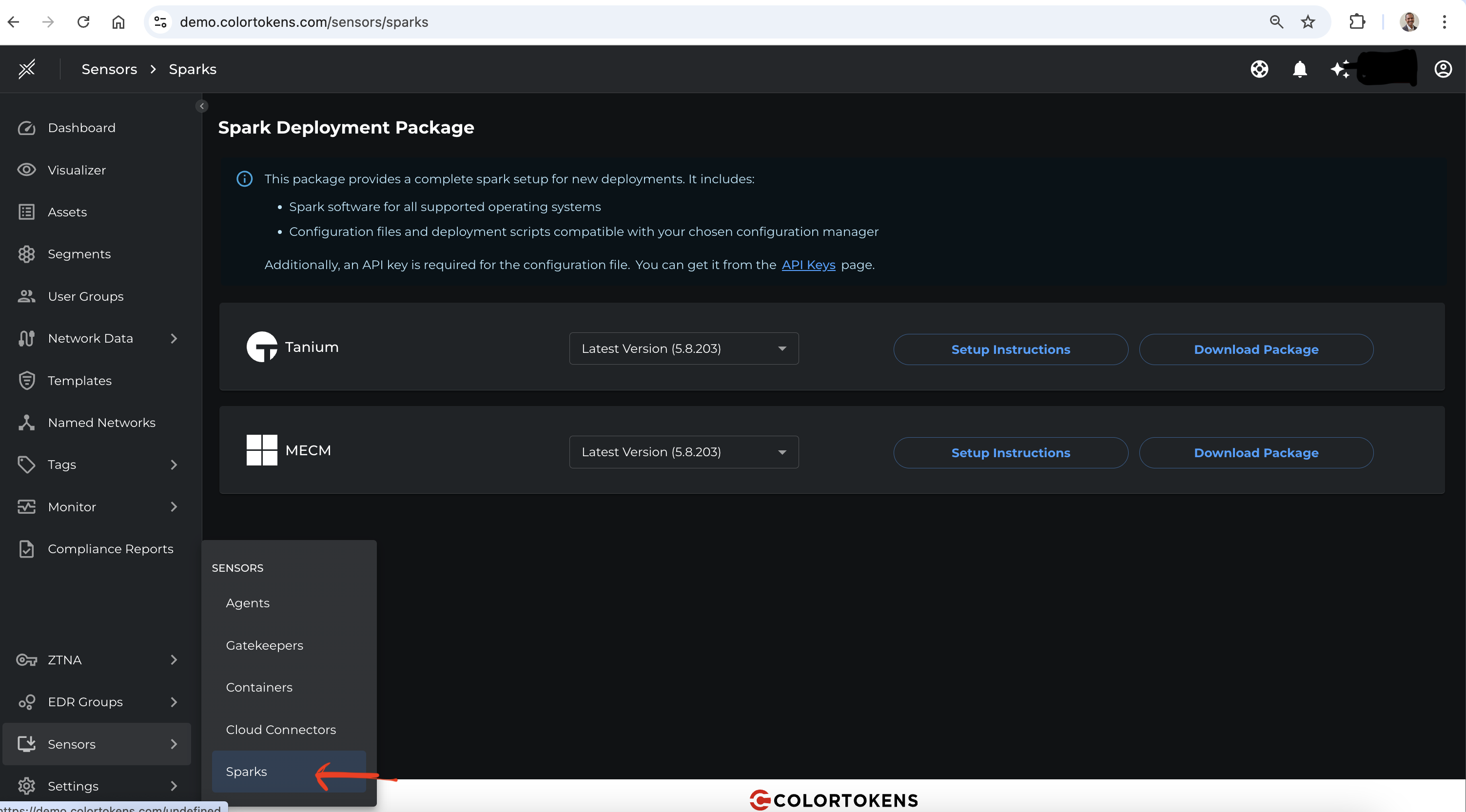
Navigate to the Xshield tenant and go to Sensors section in the navigation bar, select Spark.
You will be redirected to the Spark page. Select the Install Spark button and download the Spark package for Tanium.
2. Extract the Spark Package
Extract the archive to a local directory on your Spark Controller Windows machine & verify the extracted contents include following folders:
- tanium
- spark
3. Xshield API Credentials
- Generate API credentials from the Xshield tenant. Refer API key generation for steps
- Place the Xshield API Credentials (
*.pemandconfig.yamlfiles) in thetaniumfolder - Edit the
config.yamlfile & in theprivate_key_locationfield - enter the full location path of Xshield Private key (Ex: C:\spark\tanium\private_key.pem)
Example config.yaml file
domain: https://ng.colortokens.com
deployment_key: 4sydxxxxxxpee
api:
    base_url: https://ng.colortokens.com/api
    tenant_id: dexxxd9a-xxxx-xxxx-xxxx-1acxxxxx64ac
    user_id: 65xxxx87-xxxx-xxxx-xxxx-de1xxxxx9023
    fingerprint: xx:xx:xx:xx:xx:xx:xx:xx:xx:xx:xx:xx:xx:xx:xx:xx
    verify_ssl: true
    private_key_location: <full path to the private key file (Ex: C:\spark\mecm\private_key.pem)>
These credentials grant access to your XShield platform. Store them in a secure location and ensure they are not shared or exposed.
4. Configure Spark - Xshield Section
The Xshield Spark for Tanium is a PowerShell script and facilitates secure and automated execution of Xshield Spark operations on remote hosts managed by Tanium Server.
To enable successful communication and control, the script must be configured to: Authenticate and interact with the Xshield Security Platform & Control Tanium (through REST APIs) for remote execution of Xshield Spark
Configure the tanium_config.env file in the tanium directory with the following parameters:
XSHIELD_EDR_TYPE: Fill the EDR typeXSHIELD_TAGS: Fill the tags (Optional)XSHIELD_PROXIES: Fill the proxy if configured, leave black if proxy is not configured
Below is a sample tanium_config.env file which contains clear instructions to enter the details
# =============================================================================
# XSHIELD CONFIGURATION SECTION BEGINS
# =============================================================================
# XSHIELD PLATFORM CONFIGURATION
# =============================================================================

# EDR Type Integration
# Specify the EDR platform that XShield will integrate with
# Supported values: "sentinelone", "crowdstrike", "microsoft defender"
# [REQUIRED]

XSHIELD_EDR_TYPE="" <--- Fill the EDR type within the quotation mark

# Asset Targeting Tags
# Tags used for targeting specific assets/endpoints
# Multiple tags can be specified using comma or semicolon separation
# Examples:
# - Simple tags: "Finance,Laptop,VIP"
# - Key-value pairs: "environment=production; department=it,hr"
# [OPTIONAL]

XSHIELD_TAGS="" <--- Fill the tags (Optional)

# Proxy Configuration for XShield Assets
# JSON array format for proxy settings when assets need to communicate through proxies
# Format: [{"username":"user","password":"pass","host":"proxy.domain.com","port":8080}]
# Examples:
# - Without authentication: [{"host":"proxy.company.com","port":8080}]
# - With authentication: [{"host":"proxy.company.com","port":8080,"username":"user1","password":"pass1"}]
# - Multiple proxies: [{"host":"proxy1.company.com","port":8080},{"host":"proxy2.company.com","port":3128}]
# [OPTIONAL]

XSHIELD_PROXIES="" <--- Fill the proxy if configured, leave black if proxy is not configured

# =============================================================================
# XSHIELD CONFIGURATION SECTION ENDS
# =============================================================================
XSHIELD_TAGS is used to run Spark on specific EDR assets that are discovered. If it is left empty, Spark will be configured to run on all discovered EDR assets.
5. Configure Spark - Tanium Section
Generate Tanium API Token from Tanium console
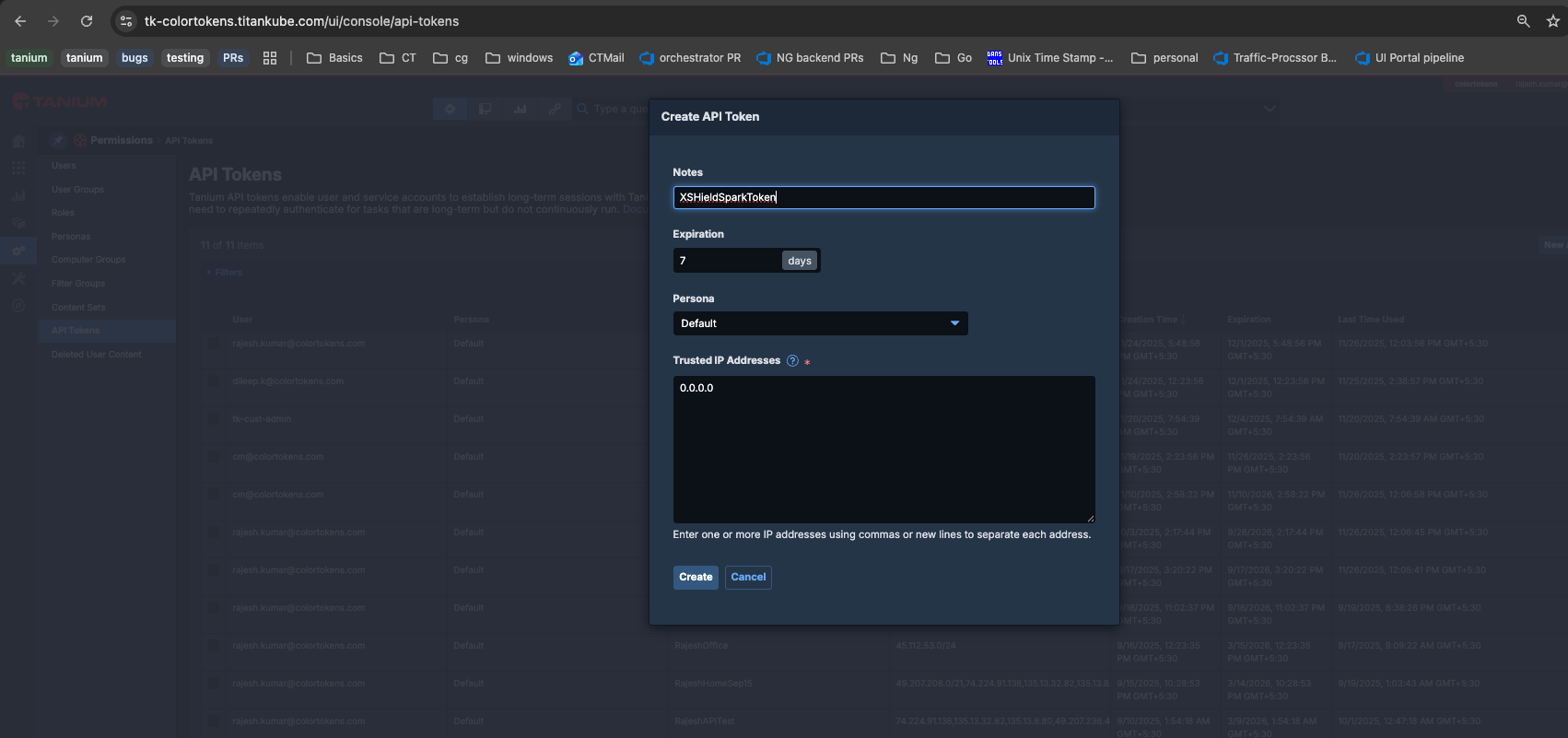 Update the below fields in the
 TANIUM section in the same tanium_config.env file located in the tanium directory:
Expand to view sample configuration in the Tanium section
# =============================================================================
# TANIUM CONFIGURATION SECTION BEGINS
# =============================================================================
# TANIUM PLATFORM CONFIGURATION
# =============================================================================

# Tanium API Endpoint
# The base URL/hostname for your Tanium platform instance
# Example: "tk-company-api.titankube.com" or "tanium.company.com"
# [REQUIRED]
TANIUM_API_ENDPOINT=""

# Tanium Authentication Token
# Session token used for authenticating API calls to Tanium
# This token should have sufficient permissions to manage packages, actions, and computer groups
# [REQUIRED]
TANIUM_TOKEN=""

# Certificate Validation
# Set to 'true' to skip SSL certificate validation for on-premise instances with self-signed certificates
# Set to 'false' for production environments with valid certificates
# [OPTIONAL] Default: false
TANIUM_SKIP_CERT_VALIDATION=false

# =============================================================================
# DEPLOYMENT PACKAGE CONFIGURATION
# =============================================================================

# Package Name Base
# Base name for the Tanium packages that will be created
# Final package names will be suffixed with OS and architecture
# Example: "XShieldSpark" becomes "XShieldSpark_windows_x86_64", "XShieldSpark_linux_x86_64"
# [REQUIRED]
TANIUM_PACKAGE_NAME=""

# Scheduled Action Name
# Name for the scheduled action that will execute the XShield Spark packages
# [REQUIRED]
TANIUM_SCHEDULED_ACTION_NAME=""

# Target Operating Systems and Architectures
# Comma-separated list of OS:architecture combinations to deploy
# Format: "os:architecture,os:architecture"
# Supported combinations: "windows:x86_64", "windows:arm64", "linux:x86_64", "linux:arm64", "darwin:x86_64", "darwin:arm64"
# Example: "windows:x86_64,linux:x86_64,darwin:x86_64"
# [REQUIRED]
TANIUM_TARGET_OS=""

# =============================================================================
# SCHEDULING AND EXECUTION CONFIGURATION
# =============================================================================

# Execution Schedule Interval
# Interval in seconds between scheduled executions of XShield Spark
# Set to 0 for one-time execution (non-recurring)
# Examples: 3600 = 1 hour, 86400 = 24 hours, 300 = 5 minutes
# [OPTIONAL] Default: 0 (one-time execution)
TANIUM_SCHEDULE_SECONDS=0

# Execution Distribution Window
# Time window in seconds over which Tanium will spread executions to prevent system spikes
# This helps avoid overwhelming the network and systems when deploying to many endpoints
# Recommended: 60-300 seconds depending on deployment size
# [OPTIONAL] Default: 60
TANIUM_DISTRIBUTE_OVER_SECONDS=60

# Script Execution Interval
# How often the deployment script should check for updates or perform maintenance
# Format: "Nm" (minutes), "Nh" (hours), "Nd" (days)
# Examples: "30m" = 30 minutes, "2h" = 2 hours, "1d" = 1 day
# [OPTIONAL]
SCRIPT_RUN_INTERVAL=""

# =============================================================================
# TARGET COMPUTER GROUP CONFIGURATION
# =============================================================================

# Computer Group Name
# Name of the Tanium computer group that will be targeted for deployment
# This group should contain all endpoints where XShield Spark should be deployed
# [REQUIRED]
TANIUM_COMPUTER_GROUP_NAME=""

# Primary Targeting Tag
# Tag used to identify and select endpoints for XShield Spark deployment
# This tag will be used to add computers to the target computer group
# [REQUIRED]
TANIUM_COMPUTER_GROUP_TAG=""

# Cleanup Identification Tag
# Special tag used to identify endpoints that should be cleaned up/removed
# This helps distinguish between active deployments and endpoints scheduled for cleanup
# [OPTIONAL]
TANIUM_COMPUTER_GROUP_CLEANUPTAG=""

# =============================================================================
# CLEANUP AND MAINTENANCE CONFIGURATION
# =============================================================================

# Cleanup Duration
# Time in seconds after which cleanup operations should be performed
# This defines how long to wait before removing XShield components from endpoints
# Examples: 86400 = 1 day, 604800 = 1 week, 2592000 = 30 days
# [OPTIONAL]
TANIUM_CLEANUP_DURATION=""

# =============================================================================
# TANIUM CONFIGURATION SECTION ENDS
# =============================================================================

# =============================================================================
# CONFIGURATION VALIDATION NOTES
# =============================================================================
# Before deploying, ensure:
# 1. All [REQUIRED] fields are filled with appropriate values
# 2. Tanium token has necessary permissions (package creation, action scheduling, computer group management)
# 3. Target OS/architecture combinations match your environment
# 4. Network connectivity between Tanium and target endpoints
# 5. XShield platform is accessible from target endpoints (consider proxy settings if needed)
# =============================================================================
6. Execute the script from Spark Controller machine
This has to be executed for the first time only, the script will periodically run based on the configured intervals in the tanium_config.env file.
- From the Spark Controller machine, open PowerShell as Administrator
- Navigate to tanium folder of the extracted package.
- Run the below command to execute the Deployment script
powershell -ExecutionPolicy Bypass -File xshield_spark_tanium_configuration_script.ps1
The script will perform the following:
- Connect to XShield platform and fetch EDR device list
- Create/update Tanium Computer Groups
- Create Tanium Package and Scheduled Action
- Set up scheduled task on Windows Task Scheduler for periodic execution of the script
Verification of Successful Configuration
After completing the configuration, you may verify that Spark is running correctly on the Tanium clients and the setup is functioning as expected.
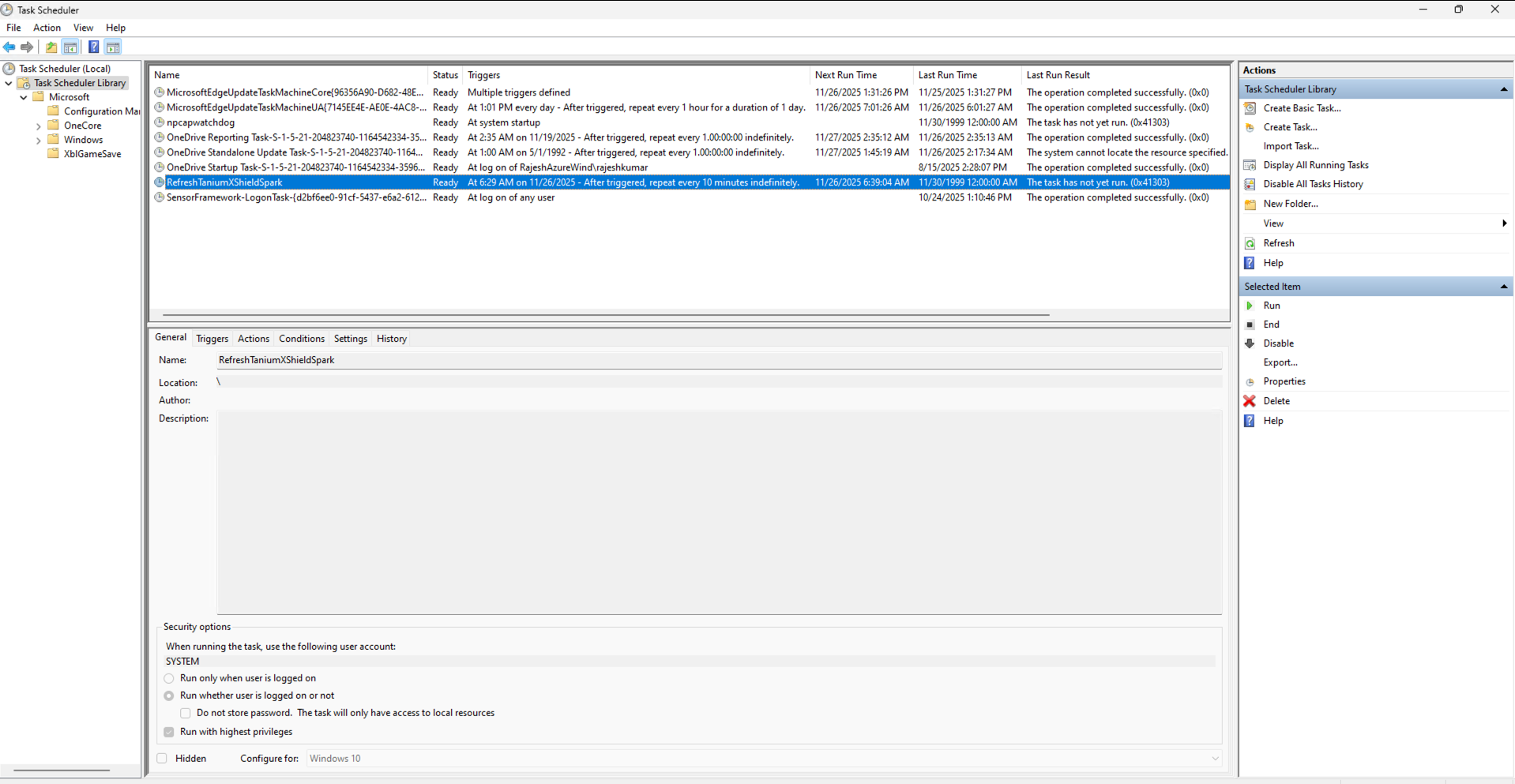
1. Windows Task Scheduler Verification
- Open Task Scheduler (taskschd.msc)
- Navigate to Task Scheduler Library
- Verify task exists: "RefreshTaniumXShieldSpark"
- Check task properties:
- Status: Ready or Running
- Next Run Time: Should show upcoming execution
- Last Run Result: 0x0 (success)
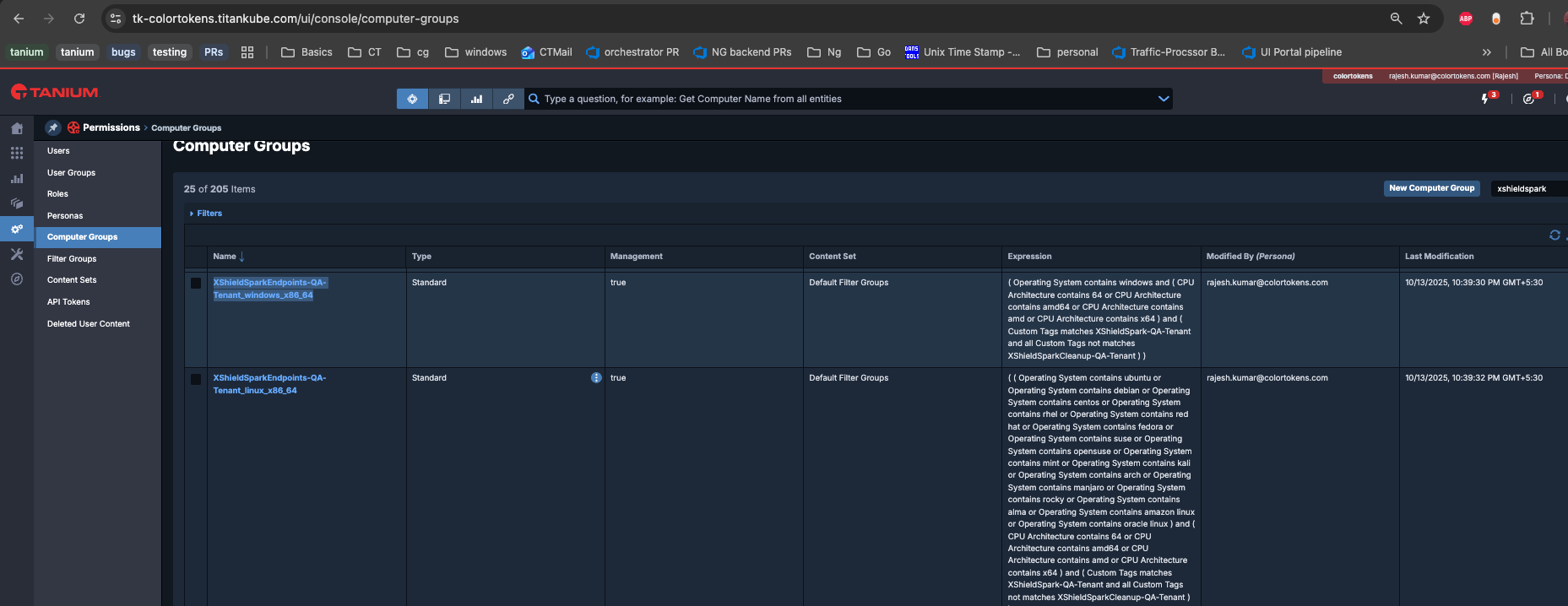
2. Tanium Computer Group Verification
- Open Tanium UI/Console
- Navigate to Administration - Computer Groups
- Verify presence of XShieldSpark_windows/linux computer groups
- Click on any one of Spark's computer groups and verify expected assets are present in that
3. Tanium Package Verification
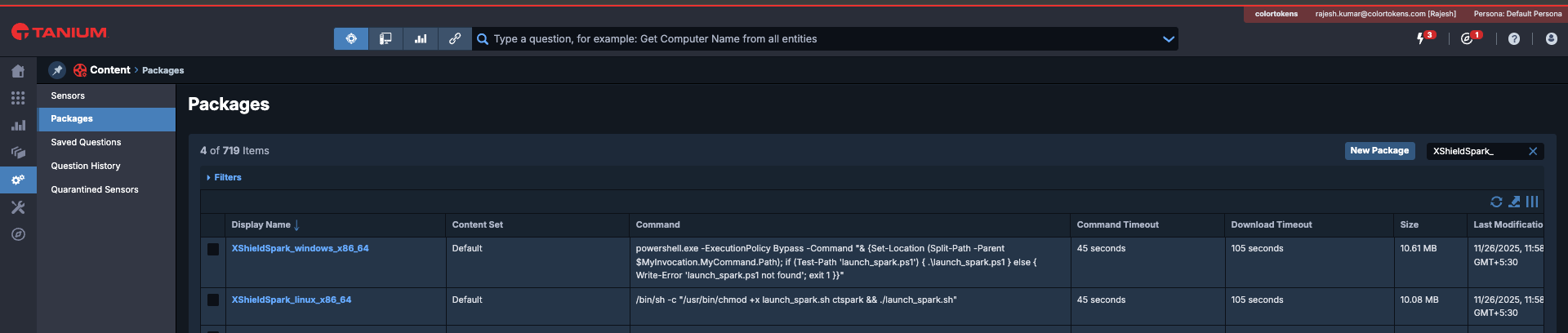
- Open Tanium UI/Console
- Navigate to Administration - Packages
- Verify Package names XShieldSpark_windows and linux and verify spark binary and config file exists:
4. Tanium Scheduled Action Verification
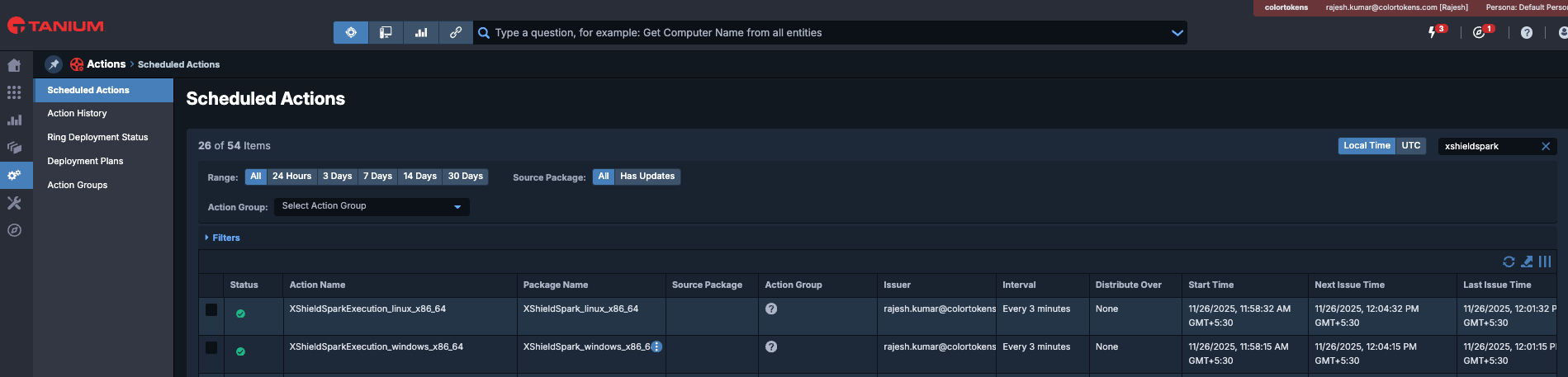
- Open Tanium UI/Console
- Navigate to Administration - Scheduled Actions
- Verify Scheduled Actions named XShieldSparkExecution and verify interval of the action:
- Ensure there is no warning symbol in the row of Scheduled action
5. Tanium Action Status Verification
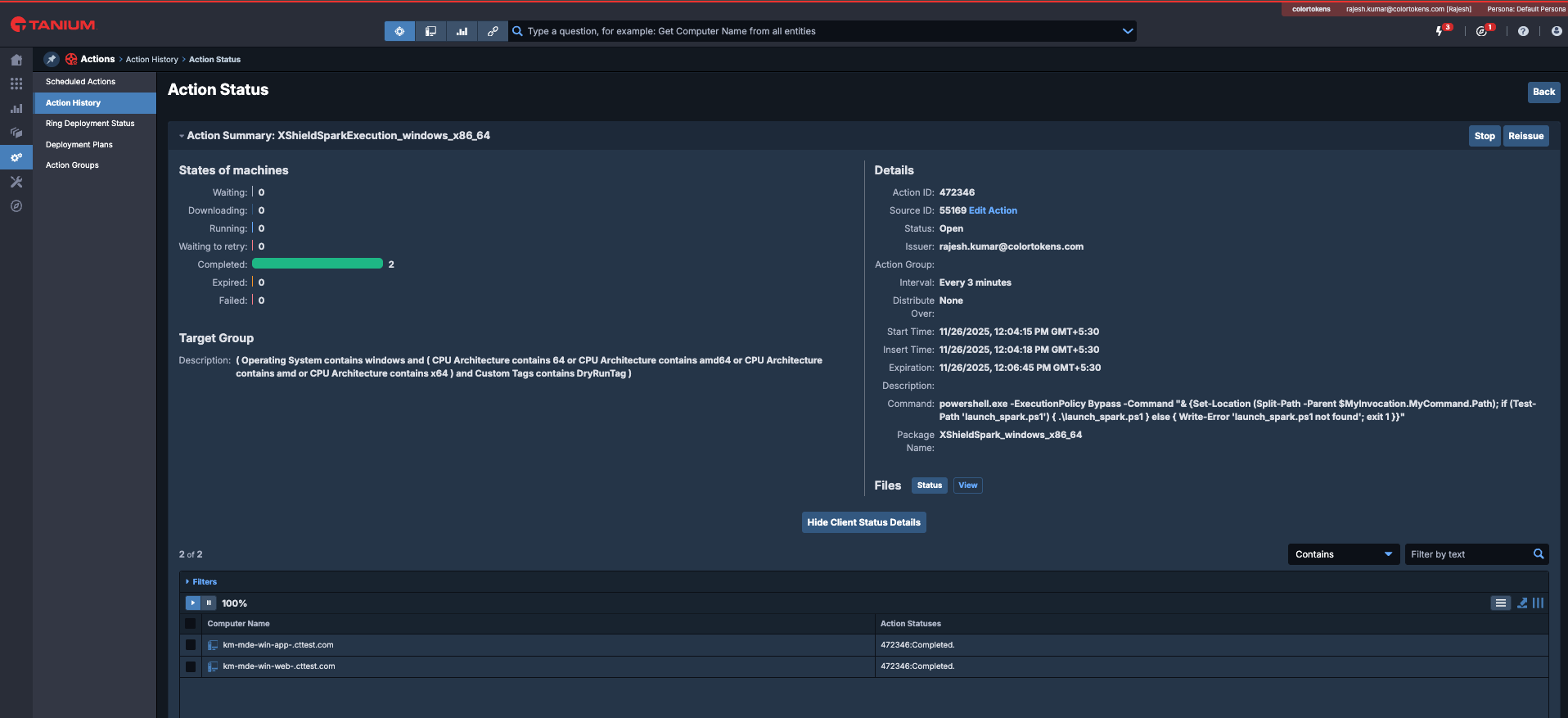
- Open Tanium UI/Console
- Navigate to Administration - Action History
- Select the entry with "XShieldSparkExecution_windows/linux" and click on Status (This is one of the periodic execution of Spark)
- Verify that the execution has completed, if any errors are seen, select the asset and view the logs.
Security Considerations
-
The Xshield Tanium script makes API calls to the Xshield Security Platform to retrieve information required to program Zero Trust micro-segmentation. These API calls are authenticated by using the secure API keys of a the user (generated on the Xshield Security Platform and imported to the host where the MECM script is executed). This secures the TLS connections between the Xshield script running on the Tanium Spark Controller server and the Xshield Platform. One of the parameters retrieved from the Xshield platform is the orchestration key to be used by Xshield Spark
-
The Xshield Spark program (executable) uses the orchestration key to authenticate the host with Xshield Security Platform and to retrieve its session key. It is then used to make secure API calls to the Xshield Security Platform to retrieve the policy file associated with the host and then to be able to send the programmed rules and firewall logs to the platform.
-
The Xshield Platform will periodically rotate the orchestration key and the session keys are short lived and valid to be used only by the Spark program running on that host.