Spark Deployment with MECM
This guide helps you to configure Xshield Spark on MECM
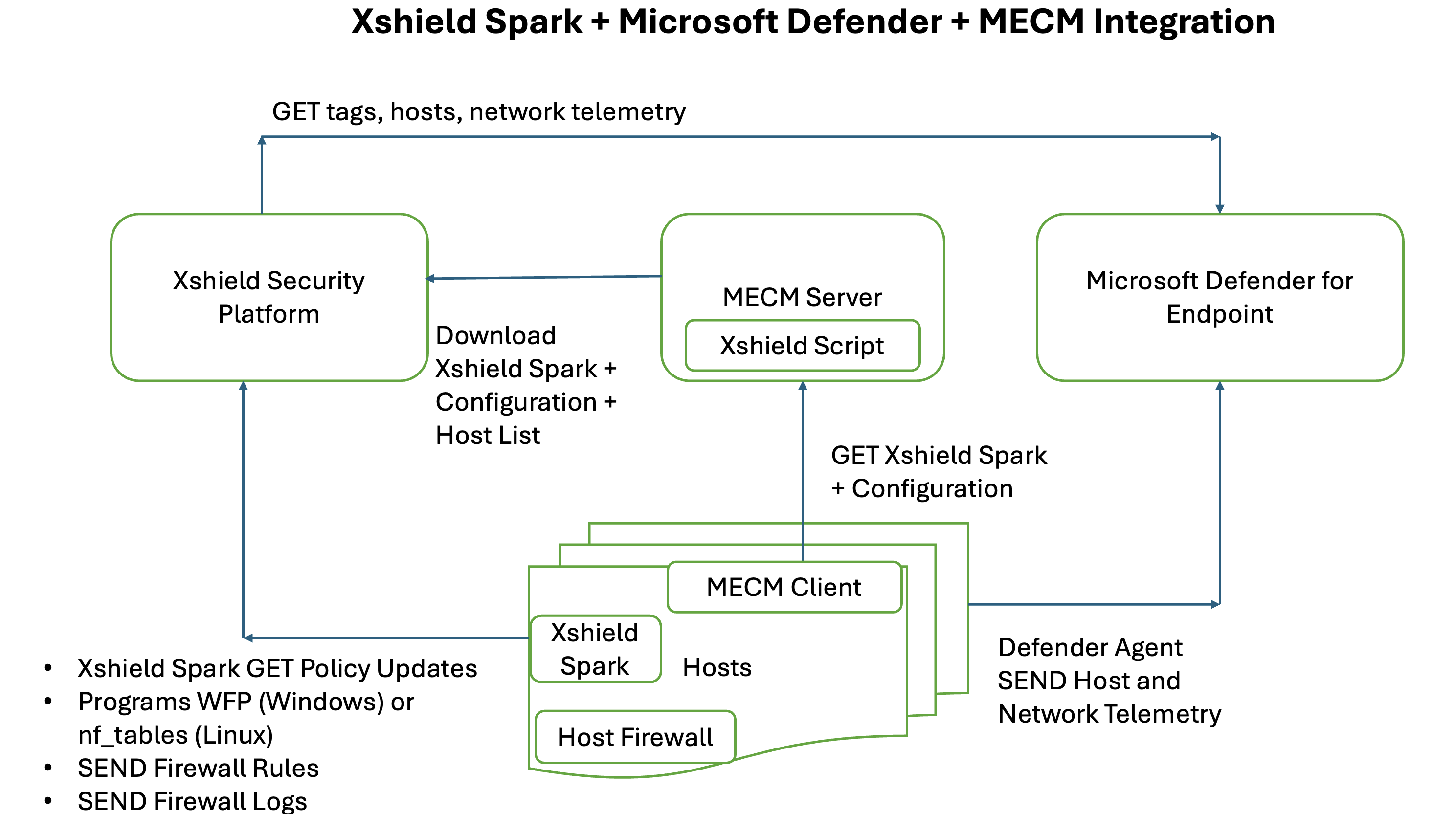
Below is an architecture of how Xshield Spark integrates with MECM
Prerequisites
- Xshield API Credentials (
*.pemandconfig.yamlfiles) - EDR agents installed on endpoint devices & EDR Integration is enabled for atleast one of the supported EDR platforms on Xshield tenant
- Powershell with Administrative priviledges on the MECM Server
- Network connectivity to XShield ColorTokens platform
- Firewall rules to allow communication between MECM Server and EDR clients
The following firewall rules are mandatory and critical for policy enforcement when using SCCM.
Expand to view the Firewall rules to be configured
| Purpose | Direction | Protocol | Port(s)/Process | Notes |
|---|---|---|---|---|
| File and Printer Sharing (SMB) | Outbound | TCP | 445 | Required for the SCCM client to access network share where package is located. (SCCM's RunFromDistributionPoint option) |
| SCCM Client Push and WMI | Inbound | TCP | 135 & Dynamic | Required for SCCM to remotely install the client and for server-to-client queries. |
| SCCM Communication (HTTP/HTTPS) | Outbound | TCP | 80, 443 | Primary communication channel for the client to download policy, content location, and status messages from the Management Point. |
| SCCM Client Status Reporting | Outbound | TCP | 8530, 8531 | Default port for clients to send health and status information to the Management Point. |
| SCCM Client Notification | Inbound | TCP | 10123 | MP notifies client computers about actions like downloading new policy or initiating a software scan. |
| SCCM Remote Control (Optional) | Inbound | TCP | 2701 | If the SCCM Remote Control feature is used. |
| SCCM Remote Assistance (Optional) | Inbound | TCP | 135, 3389 | If Remote Desktop or Remote Assistance from the SCCM console is needed. |
| Active Directory: Kerberos | Outbound | TCP, UDP | 88 | Primary authentication protocol for communication with Active Directory. |
| Active Directory: LDAP | Outbound | TCP, UDP | 389 | Used for LDAP queries to AD for client information and discovery. |
| Active Directory: LDAPS | Outbound | TCP | 636 | Secure version of LDAP for encrypted communication with AD. |
| Active Directory Forest: Global Catalog | Outbound | TCP | 3268, 3269 | Clients use Global Catalog to locate management points and site info within a large AD forest. |
Deployment Steps
1. Download Spark Package
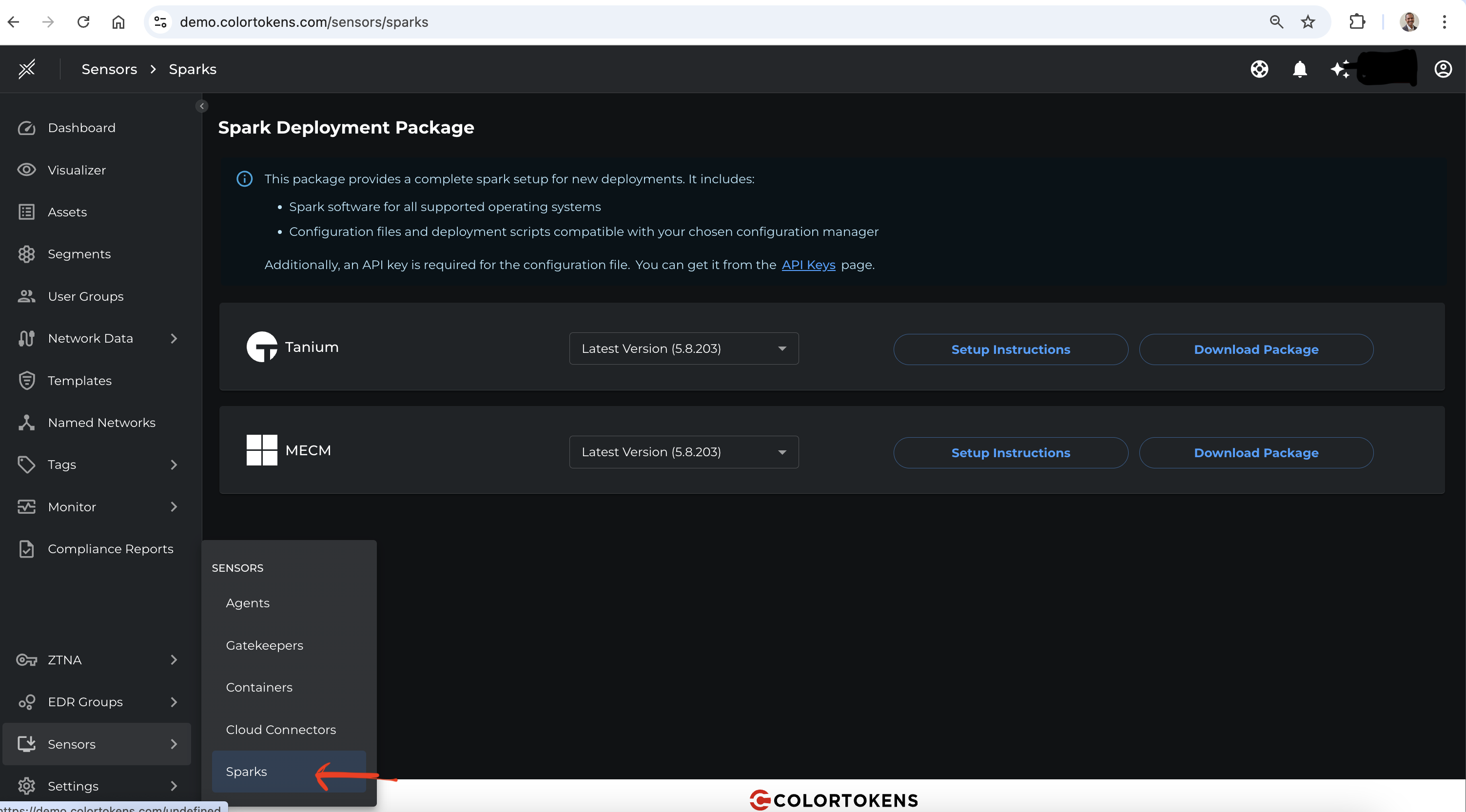
Navigate to the Xshield tenant and go to Sensors section in the navigation bar, select Spark.
You will be redirected to the Spark page. Select the Install Spark button and download the Spark package for MECM.
2. Extract the Spark Package
- Extract the archive to a local directory on your MECM Primary Site Server
- Verify the extracted contents include following folders:
- mecm
- spark
3. Xshield API Credentials
- Generate API credentials from the Xshield tenant. Refer API key generation for steps
- Place the Xshield API Credentials (
*.pemandconfig.yamlfiles) in themecmdirectory - Edit the
config.yamlfile & in theprivate_key_locationfield - enter the full location path of Xshield Private key (Ex: C:\spark\mecm\private_key.pem)
Example config.yaml file
domain: https://ng.colortokens.com
deployment_key: 4sydxxxxxxpee
api:
    base_url: https://ng.colortokens.com/api
    tenant_id: dexxxd9a-xxxx-xxxx-xxxx-1acxxxxx64ac
    user_id: 65xxxx87-xxxx-xxxx-xxxx-de1xxxxx9023
    fingerprint: xx:xx:xx:xx:xx:xx:xx:xx:xx:xx:xx:xx:xx:xx:xx:xx
    verify_ssl: true
    private_key_location: <full path to the private key file (Ex: C:\spark\mecm\private_key.pem)>
These credentials grant access to your XShield platform. Store them in a secure location and ensure they are not shared or exposed.
4. Configure Spark - Xshield Section
The Xshield Spark for MECM is a PowerShell script and facilitates secure and automated execution of Xshield Spark operations on remote hosts managed by Microsoft Endpoint Configuration Manager (MECM).
To enable successful communication and control, the script must be configured to: Authenticate and interact with the Xshield Security Platform & Control MECM for remote execution of Xshield Spark
- Configure the
mecm_config.envfile in themecmdirectory with the following parameters:EDRType: Fill the EDR typeTags: Fill the tags (Optional)Proxy: Fill the proxy if configured, leave black if proxy is not configured
Below is a sample mecm_config.env file which contains clear instructions to enter the details
# =============================================================================
# XSHIELD CONFIGURATION SECTION BEGINS
# =============================================================================
# XSHIELD PLATFORM CONFIGURATION
# =============================================================================

# EDR Type Integration
# Specify the EDR platform that XShield will integrate with
# Supported values: "sentinelone", "crowdstrike", "microsoft defender"
# [REQUIRED]
XSHIELD_EDR_TYPE="" <--- Fill the EDR type within the quotation mark

# Asset Targeting Tags
# Tags used for targeting specific assets/endpoints
# Multiple tags can be specified using comma or semicolon separation
# Examples:
#   - Simple tags: "Finance,Laptop,VIP"
#   - Key-value pairs: "environment=production; department=it,hr"
# [OPTIONAL]
XSHIELD_TAGS="" <--- Fill the tags (Optional)

# Proxy Configuration for XShield Assets
# JSON array format for proxy settings when assets need to communicate through proxies
# Format: [{"username":"user","password":"pass","host":"proxy.domain.com","port":8080}]
# Examples:
#   - Without authentication: [{"host":"proxy.company.com","port":8080}]
#   - With authentication: [{"host":"proxy.company.com","port":8080,"username":"user1","password":"pass1"}]
#   - Multiple proxies: [{"host":"proxy1.company.com","port":8080},{"host":"proxy2.company.com","port":3128}]
# [OPTIONAL]
XSHIELD_PROXIES="" <--- Fill the proxy if configured, leave black if proxy is not configured

# =============================================================================
# XSHIELD CONFIGURATION SECTION ENDS
# =============================================================================
XSHIELD_TAGS is used to run Spark on specific EDR assets that are discovered. If it is left empty, Spark will be configured to run on all discovered EDR assets.
5. Configure Spark - MECM Section
Update the below fields in the MECM section in the same mecm_config.env file located in the mecm directory:
SiteCode- A unique three-character identifier that distinguishes each site (like a primary, secondary, or central site) within the Configuration Manager hierarchyDistributionPoint- MECM server role that stores and distributes software packages (ex: Spark)ScriptRunInterval- Enables the script to run at a desired cadence (through Windows Task Scheduler) to fetch latest set of EDR hosts from XShield DashboardSchedule- The interval at which the Spark executable runs automatically on SCCM clients without any manual intervention. If this schedule is left empty, Spark will run only once on the clients whenever the script is executed.- Other MECM Fields as per your MECM configuration
Expand to view sample configuration in the MECM section
# =============================================================================
# MECM CONFIGURATION SECTION BEGINS
# =============================================================================
# MECM INFRASTRUCTURE CONFIGURATION
# =============================================================================

# MECM Site Code
# Three-character site code for your MECM primary site
# Example: "PS1", "NYC", "HQ1"
# [REQUIRED]
MECM_SITE_CODE="sitecode1"

# Distribution Point Server
# Fully qualified domain name (FQDN) of the MECM distribution point server
# This server will host the XShield Spark package files
# Example: "mecm-dp01.company.com" or "sccm.company.local"
# [REQUIRED]
MECM_DISTRIBUTION_POINT="server.domain.com"


# =============================================================================
# PACKAGE CONFIGURATION
# =============================================================================

# Package Name
# Name for the MECM package that will be created
# This name will appear in the MECM console under Software Library > Packages
# [OPTIONAL] Default: "XShieldEDRSpark"
MECM_PACKAGE_NAME="XShieldEDRSpark"

# Package Source Path
# UNC or local path where XShield Spark files are stored
# This location must be accessible by the MECM site server and distribution points
# IMPORTANT: Use escaped backslashes for Windows paths (e.g., C:\Path\To\Files)
# Examples:
#   - UNC path: "\\fileserver\shares\XShieldSpark"
#   - Local path: "C:\Program Files\Microsoft Configuration Manager\scripts\XShieldSpark"
# [REQUIRED]
MECM_SOURCE_PATH="C:\Program Files\Microsoft Configuration Manager\scripts\ColortokensTest"


# =============================================================================
# DEPLOYMENT CONFIGURATION
# =============================================================================

# Deployment Name
# Name for the deployment that will execute the XShield Spark package
# This name will appear in the MECM console under Monitoring > Deployments
# [OPTIONAL] Default: "ExecuteXShieldSpark"
MECM_DEPLOYMENT_NAME="ExecuteXShieldSpark"

# Target Collection Name
# Name of the MECM device collection that will receive the deployment
# This collection should contain all endpoints where XShield Spark should be deployed
# Example: "XShield_Endpoints", "All_Windows_Workstations", "Production_Servers"
# [REQUIRED]
MECM_DEPLOYMENT_COLLECTION="XShield_Endpoints"

# Deployment Execution Method
# Determines how the package is executed on target endpoints
# Options:
#   - "RunProgramFromDistributionPoint": Executes directly from DP (recommended for smaller packages)
#   - "DownloadContentFromDistributionPointAndRunLocally": Downloads first, then executes (recommended for larger packages or unreliable networks)
# [OPTIONAL] Default: "RunProgramFromDistributionPoint"
MECM_DEPLOYMENT_EXECUTION_METHOD="RunProgramFromDistributionPoint"


# =============================================================================
# SCHEDULING AND EXECUTION CONFIGURATION
# =============================================================================

# Deployment Schedule
# Defines how often the XShield Spark deployment should run on target endpoints
# Format: "Nm" (minutes), "Nh" (hours), "Nd" (days), or empty for non-recurring
# Examples:
#   - "30m" = Every 30 minutes
#   - "2h" = Every 2 hours
#   - "1d" = Every 1 day
#   - "" = One-time execution (non-recurring)
# [OPTIONAL] Default: "" (non-recurring)
MECM_DEPLOYMENT_SCHEDULE="1h"

# Script Execution Interval
# How often the deployment script should check for updates or perform maintenance
# Format: "Nm" (minutes), "Nh" (hours), "Nd" (days)
# Examples: "10m" = 10 minutes, "1h" = 1 hour, "1d" = 1 day
# [OPTIONAL] Default: "10m"
MECM_SCRIPT_RUN_INTERVAL="10m"


# =============================================================================
# MECM CONFIGURATION SECTION ENDS
# =============================================================================
6. Execute the script from MECM Server
This has to be executed for the first time only, the script will periodically run based on the configured intervals in the mecm_config.env file.
- From the MECM server, open PowerShell as Administrator
- Navigate to mecm folder of the extracted package.
- Run the below command to execute the Deployment script
powershell -ExecutionPolicy Bypass -File xshield_spark_mecm_configuration_script.ps1
The script will perform the following:
- Initialize SCCM PowerShell module
- Connect to XShield platform and fetch device list
- Create/update SCCM device collection
- Create SCCM package and program
- Distribute content to distribution points
- Create deployment to target collection
- Set up scheduled task for periodic execution
Verification of Successful Configuration
After completing the configuration, you may verify that Spark is running correctly on the MECM clients and the setup is functioning as expected.
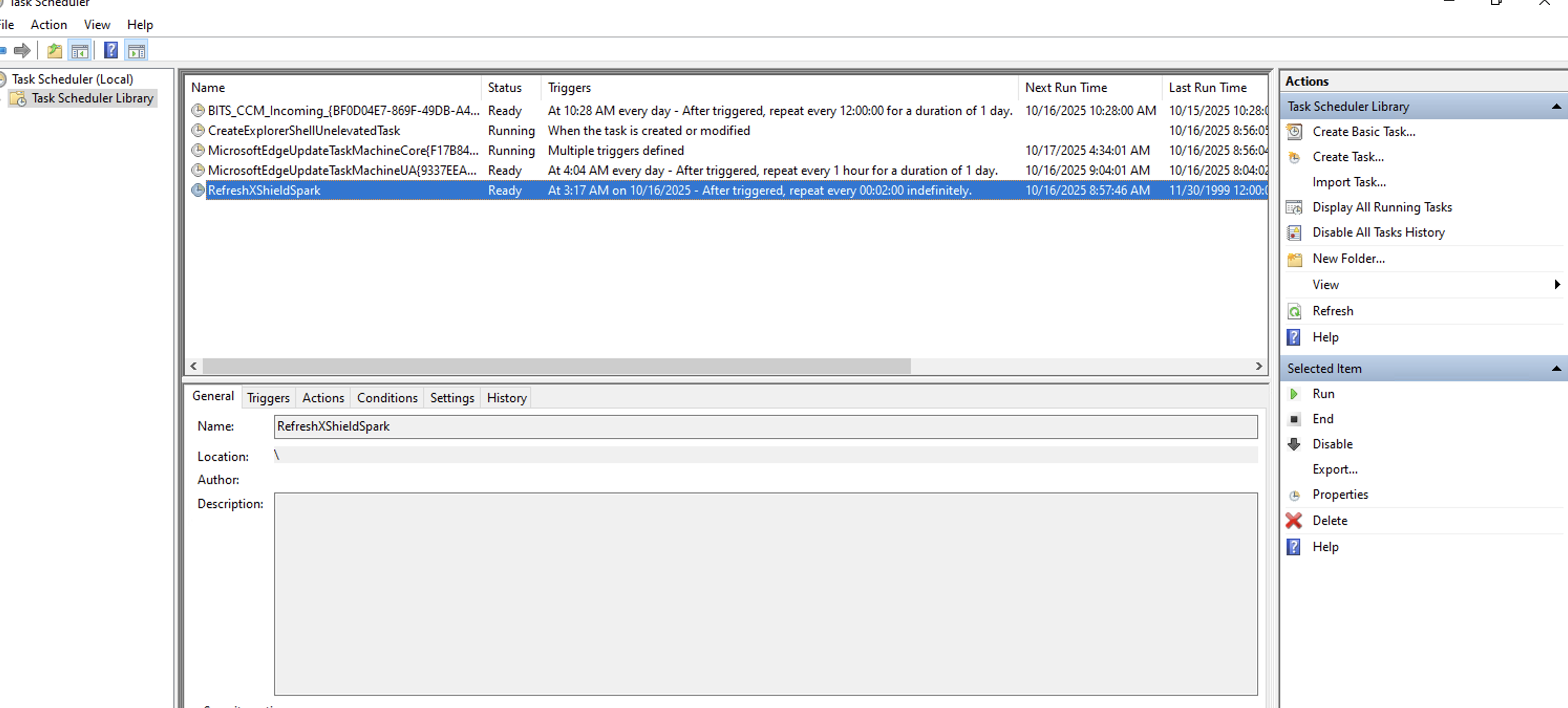
1. Windows Task Scheduler Verification
- Open Task Scheduler (taskschd.msc)
- Navigate to Task Scheduler Library
- Verify task exists: "RefreshXShieldSpark"
- Check task properties:
- Status: Ready or Running
- Next Run Time: Should show upcoming execution
- Last Run Result: 0x0 (success)
2. SCCM Console Verification
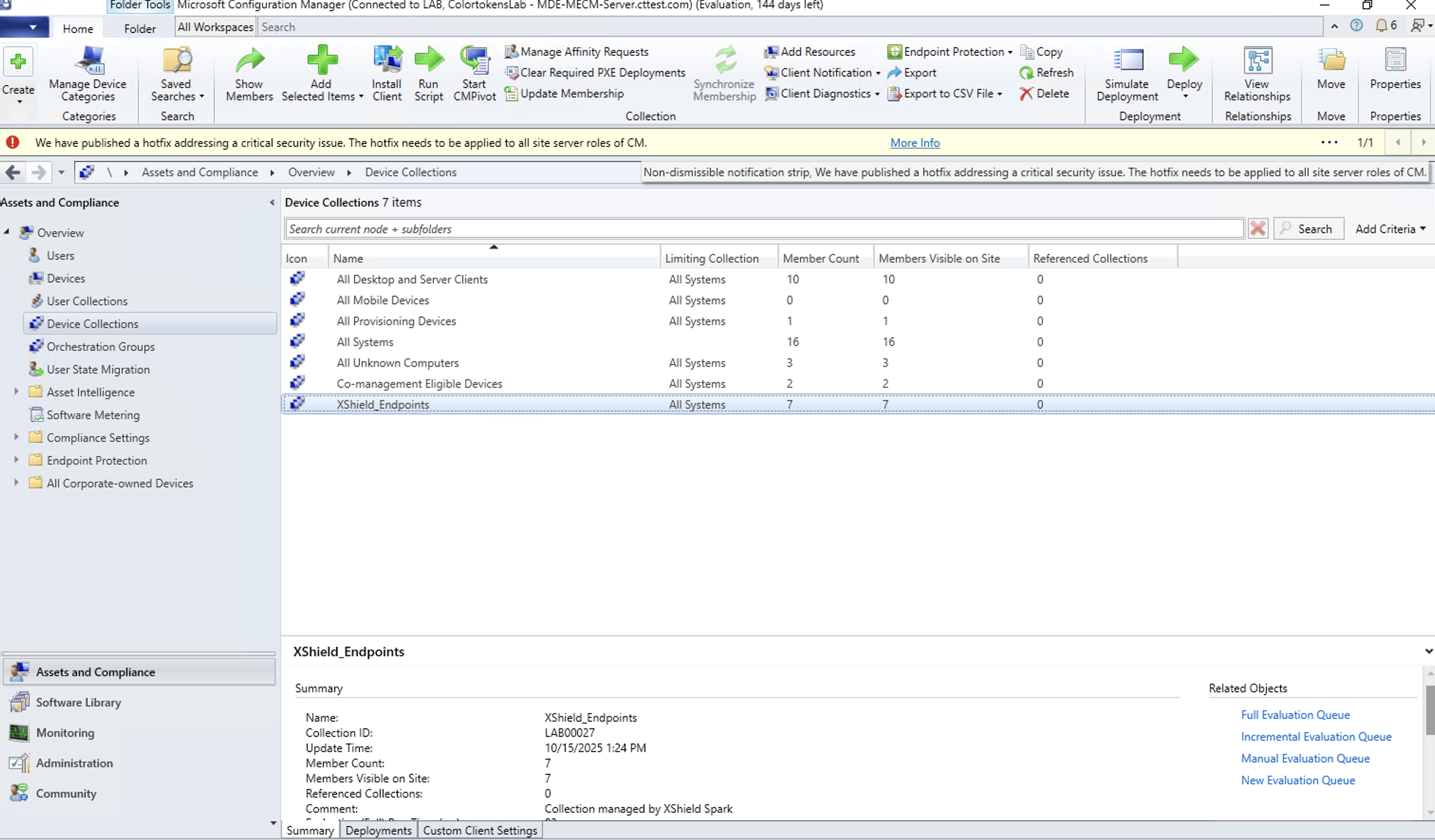
Device Collection Check
- Open SCCM Console
- Navigate to Assets and Compliance > Device Collections
- Find collection: "XShield_Endpoints"
- Verify:
- Collection contains target devices
- Devices show "Online" status
- Device count matches expected endpoints
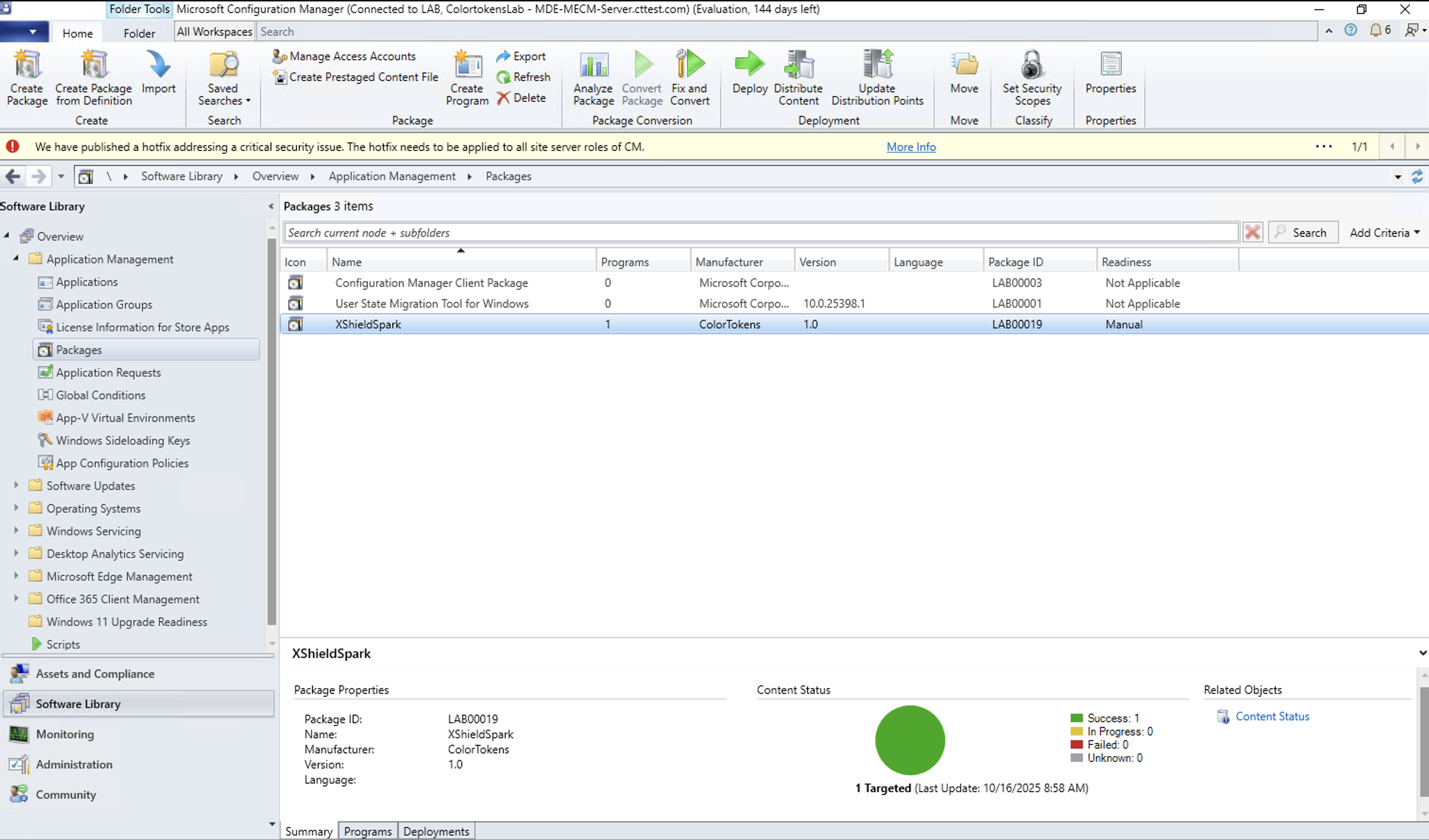
3. Package Verification
- Navigate to Software Library > Packages
- Find package: "XShieldSpark"
- Verify package properties:
- Source Path: Matches your configured path
- Content Status: Distributed successfully
- Package Size: Appropriate size for spark binary
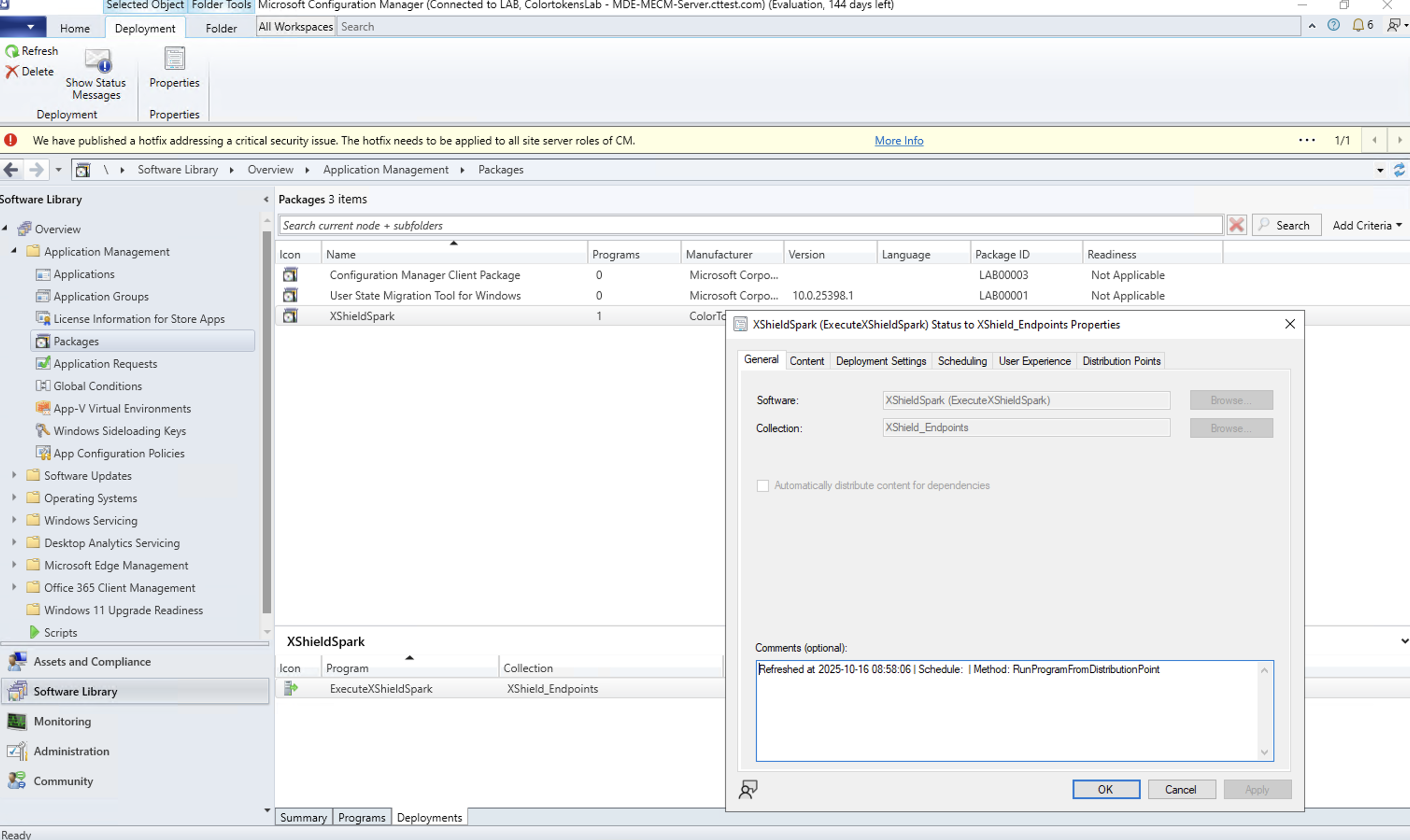
4. Deployment Verification
- Select the "XShieldSpark" package
- Click Deployments tab at bottom
- Verify deployment entry shows:
- Collection: "XShield_Endpoints"
- Purpose: Required
- Deployment Start Time: Recent timestamp
- Available Time: As Soon As Possible
Security Considerations
-
The Xshield MECM script makes API calls to the Xshield Security Platform to retrieve information required to program Zero Trust micro-segmentation. These API calls are authenticated by using the secure API keys of a the user (generated on the Xshield Security Platform and imported to the host where the MECM script is executed). This secures the TLS connections between the Xshield script running on the MECM server and the Xshield Platform. One of the parameters retrieved from the Xshield platform is the orchestration key to be used by Xshield Spark
-
The Xshield Spark program (executable) uses the orchestration key to authenticate the host with Xshield Security Platform and to retrieve its session key. It is then used to make secure API calls to the Xshield Security Platform to retrieve the policy file associated with the host and then to be able to send the programmed rules and firewall logs to the platform.
-
The Xshield Platform will periodically rotate the orchestration key and the session keys are short lived and valid to be used only by the Spark program running on that host.