Decommissioning
Gatekeepers can be decommissioned from the UI or from the console using ctconfig utility. A gatekeeper can be decommissioned from the Xshield Portal even if it is no longer on the network. Decommissioning a gatekeeper will attempt to first uninstall the gatekeeper (if connected), preserving the WAN connectivity and if not connected will proceed with removing all devices, traffic, templates and other data in the console related to the gatekeeper. This is a destructive operation and cannot be undone.
From UI
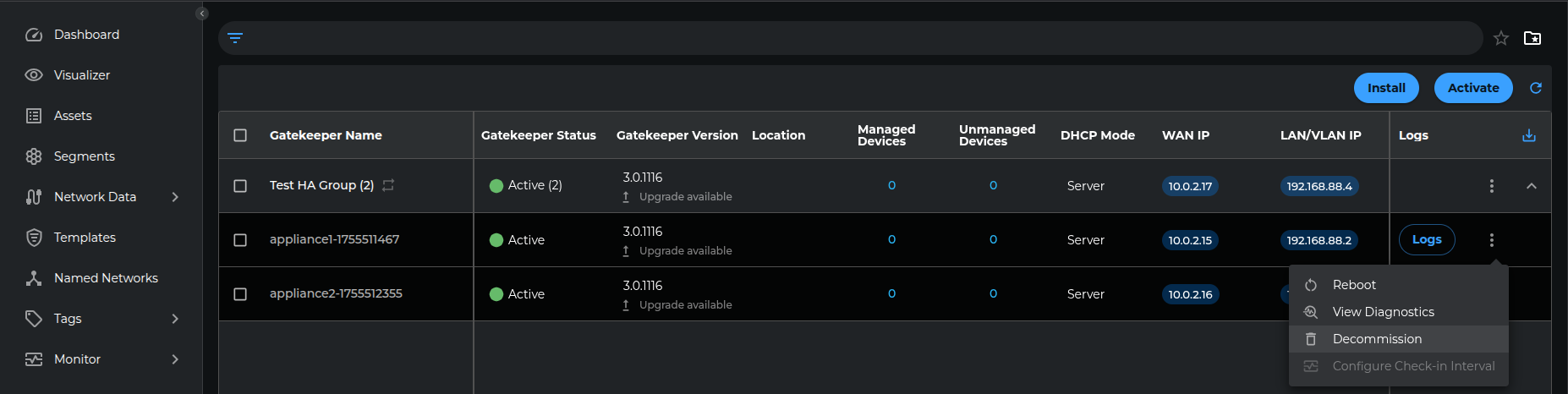
To decommission the gatekeeper, navigate to the Gatekeepers list page in the UI and select the target Gatekeeper from the list. Click the Action menu on the right side and choose the "Decommission" option.
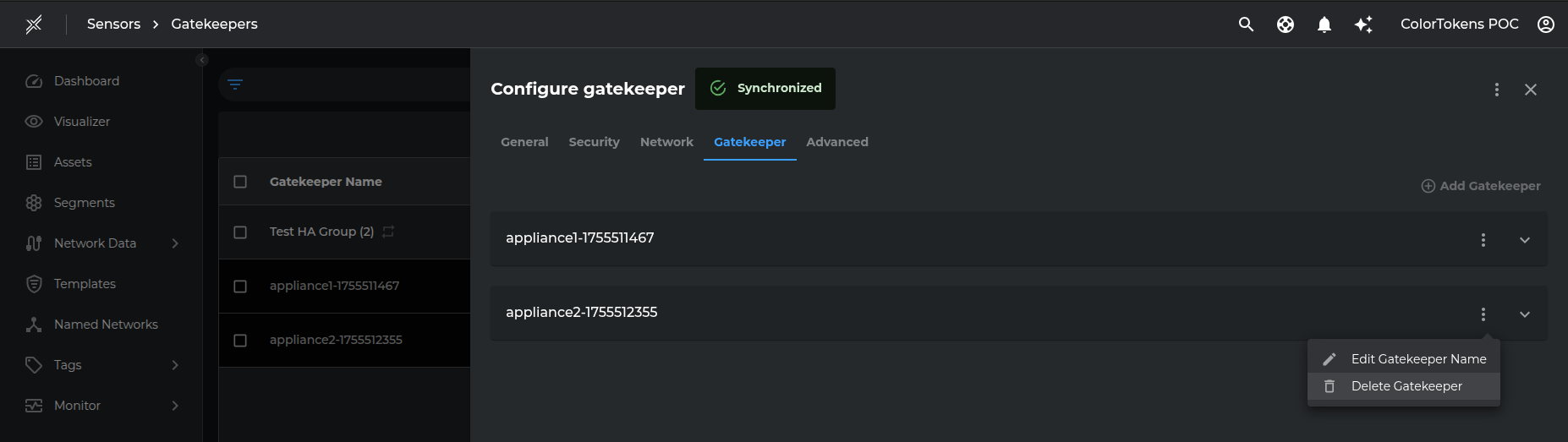
If the Gatekeeper is part of a High Availability (HA) group, it can also be decommissioned through the HA group's Configuration UI by navigating to the Gatekeeper tab and selecting the delete option for the specific gatekeeper.
From the console using ctconfig utility
Gatekeepers can be decommissioned from the console using ctconfig utility as follows:
- Login to the gatekeeper console as root.
- Run the following command:
ctconfig
- Select the option 3 to decommision the gatekeeper.
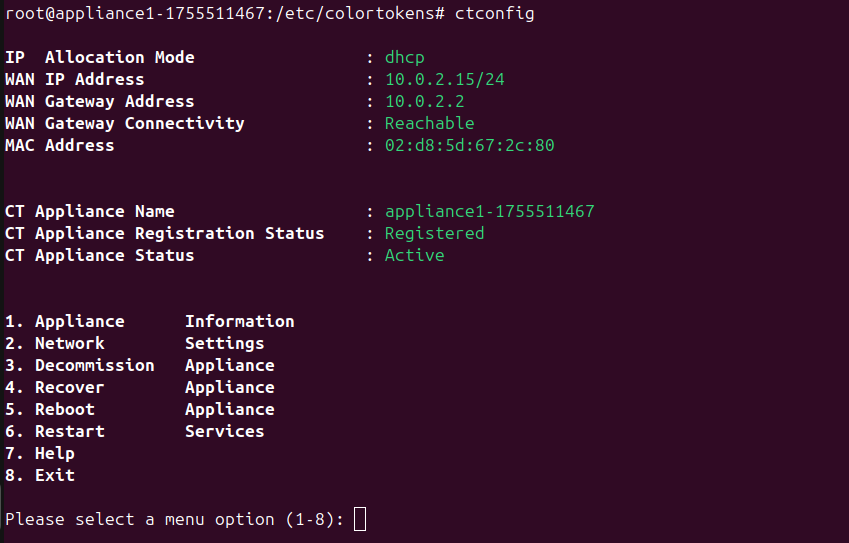
- When prompted with "Are you sure you want to decommission your gatekeeper (y/n)", type
yand press Enter.