Software Upgrades
Overview
Xshield software releases/upgrades are classified as below:
Major Releases:
Major releases are substantial updates, which introduce significant improvements and new features, are scheduled for release once every three months to ensure you receive latest features/enhancements/fixes.
Hotfixes:
Regular Non-Urgent Hotfixes: Delivered monthly to address minor issues, optimize performance, and make small adjustments that enhance platform stability without major disruption.
Urgent Hotfixes: These critical fixes are released on-demand to promptly resolve urgent issues that could impact user experience or functionality, ensuring the platform maintains high reliability and security standards.
Platform Upgrade
❗ IMPORTANT: Syncing changes from the updated repository package will overwrite any local modifications. Please ensure you note and back up any local changes needed for your specific deployment or environment. Reapply these changes after the repository sync is complete.
Download the tar package
- Download the respective tar package for upgrade. Substitute the
<version>with the respective build version
curl https://sactonprem.blob.core.windows.net/offline-package-tarballs/<version>/ct_service_images_static_files_repo.tar.gz
- Login to the registry VM
- Navigate to tar-files folder in home path
cd $HOME/tar-files/
- Place the tar package under $HOME/tar-files in the registry VM
Update SSL certs (Optional)
If there is not SSL cert change proceed to the next step Upgrade the services Follow the steps if there is an ssl/ saml cert change for the platform.
- SAML cert change will be notified by CT
- SSL cert is owned by the customer.
Pre-requisites from customer
When the existing SSL certificate expires we need to update the platform to ensure trusted TLS connectivity. If the SSL cert has expired customer has to provide the following files
- Full-chain SSL cert, in pem format, (sequence of the cert should be leaf certificate > intermediates > root cert).
- The private key, in pem format, corresponding to the new certificate.
- If the certificate is signed by an internal CA (not a well known CA like digicert etc.), the root certificate should also be provided by the customer
The above files are to be copied to the registry VM by the customer. If the file name/ path is different customer should notify the deployment engineer
- Copy the Full-chain SSL cert to /tmp/tls.crt on the registry VM
- Copy the root CA certificate to /tmp/CACert.crt (if applicable)
- Copy the corresponding private key to /tmp/tls.key on the registry VM
Tasks for deployment engineer
- Deployment engineer to verify the following path in the file ~/onprem-infrastructure/config/customer.yaml
ssl:
  enabled: true
  certPath: "/tmp/tls.crt" #Add absolute path to ssl cert. Cert should be a full certificate chain
  privKeyPath: "/tmp/tls.key" #Add absolute path to private key
  customCa:
    enabled: false # enable if the CA is internal
    rootCertPath: "/tmp/CACert.crt" #Add absolute path root CA file
- Run the script to verify and setup the cert files for deployment
cd onprem-infrastructure/
bash deploy-semaphoreui.sh -s
The certificate The script should pass without any errors. If there are errors let the customer know. Fix the issue with the certificate before upgrade/ deployment. Expected output:
ctuser@ubuntu22-onprem:~/onprem-infrastructure$ bash deploy-semaphoreui.sh -s
Copying SSL certificates
Certificate subjects:
Platform: subject=C = xx, ST = xxx, L = xx, O = "xxxx, Inc.", CN = x.xxxx.xx
Keycloak: subject=C = xx, ST = xxx, L = xx, O = "xxxx, Inc.", CN = x.xxxx.xx
Registry: subject=C = xx, ST = xxx, L = xx, O = "xxxx, Inc.", CN = x.xxxx.xx

Verifying private keys:
All the keys are valid: OK

Verifying certificates and keys match:
Certificate and key match: OK
Upgrade the services
- Login to semaphore UI at
http://registry-<colortokens>.<your-domain-name>.com:3000- Default username. password is admin/colors321
- Navigate to Task Templates >> UPGRADE tab
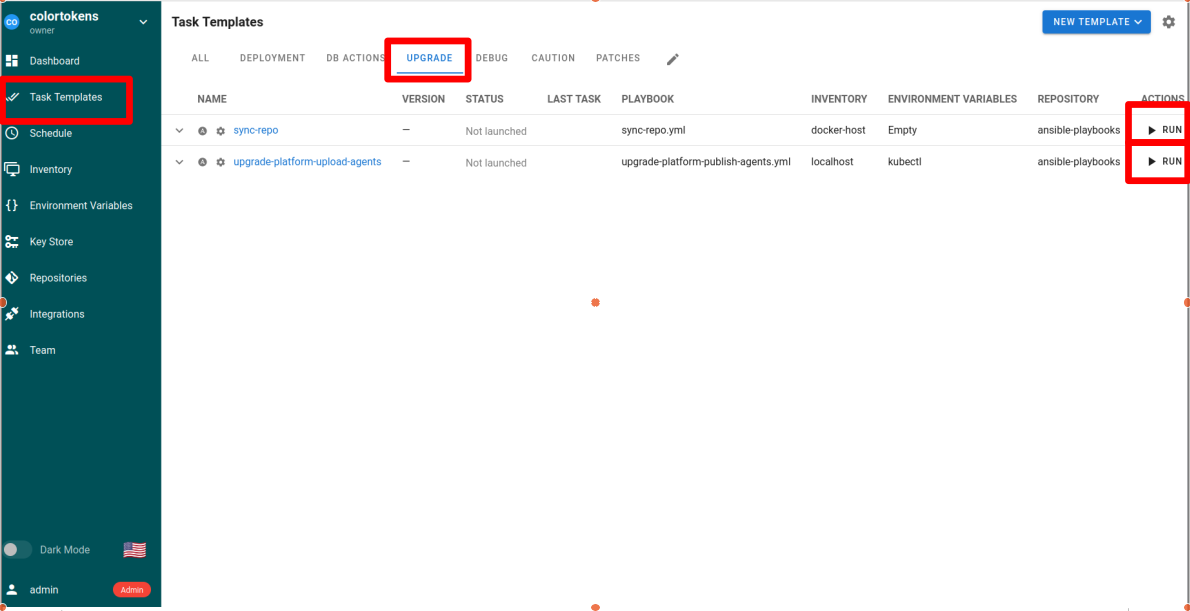
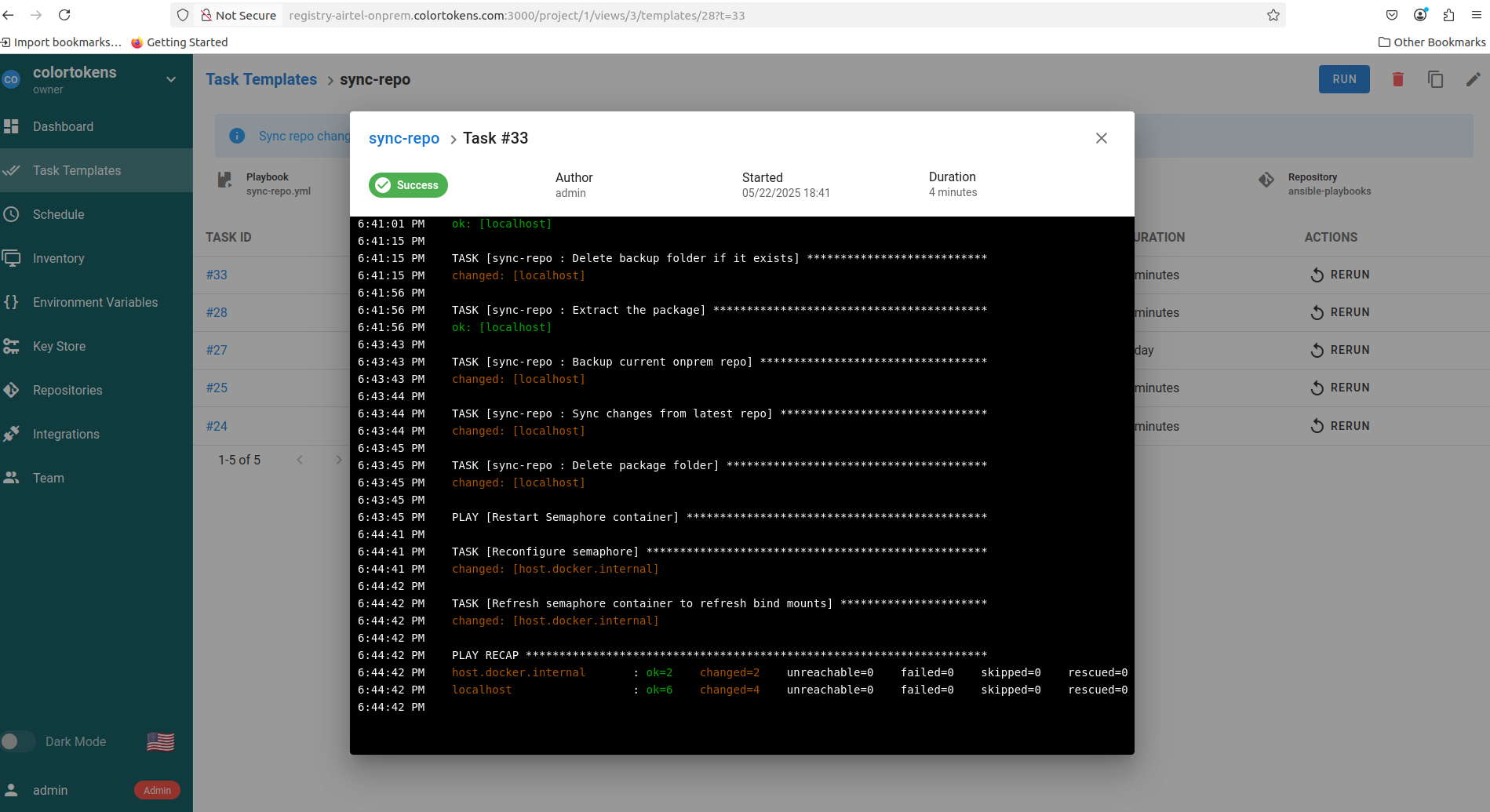
- Run sync-repo playbook. The playbook syncs the local copy of onprem-infrastructure repository with the release version changes
- Once the above task completes successfully, run the playbook upgrade-platform-upload-agents. The playbook upgrades the Colortokens services and publishes the agents on the cluster
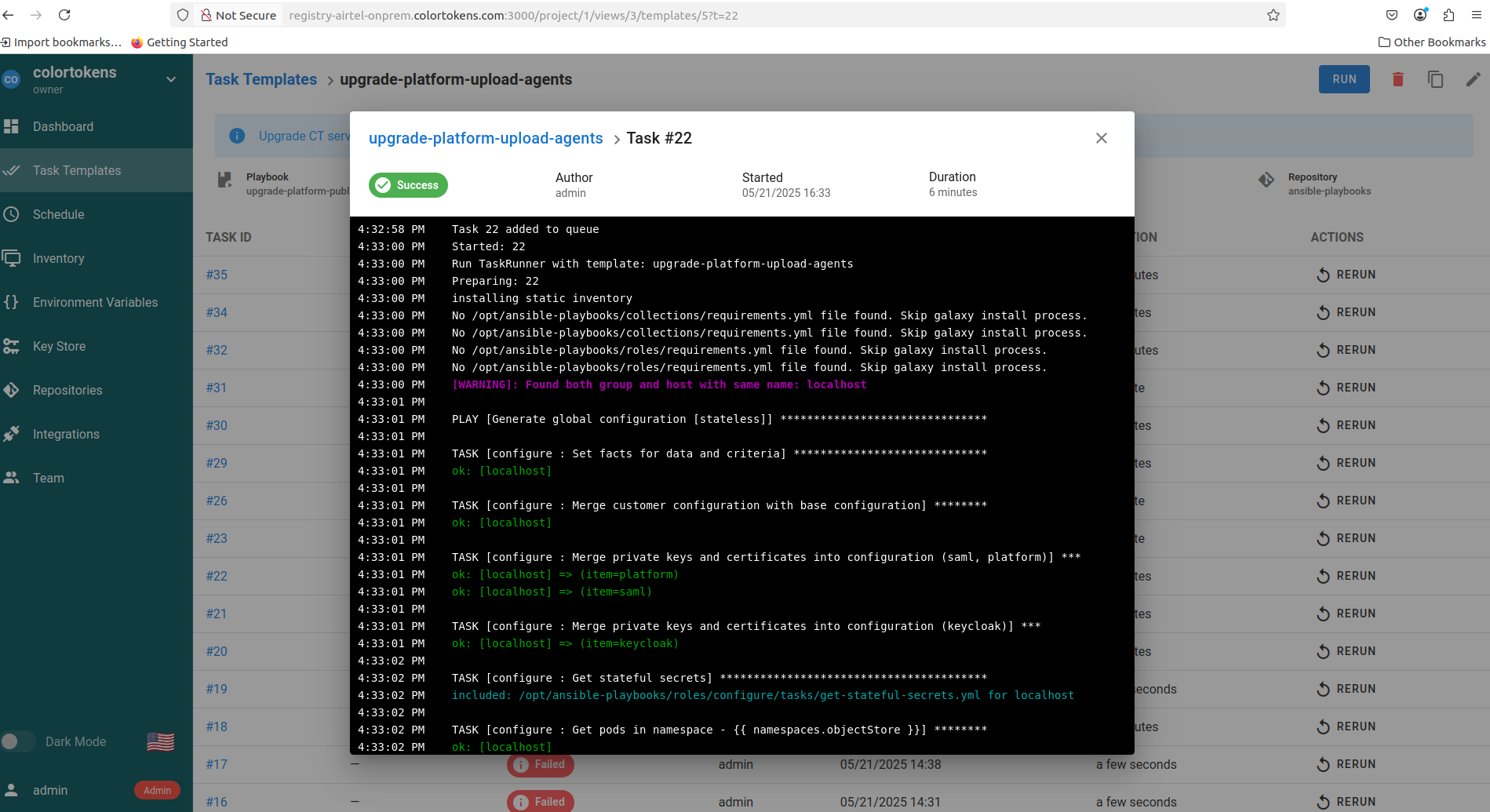
In case of failure please check the logs in the playbook console window
Upgrade steps for 25.2 only
- Login to registry VM
- Extract the CT services tar package
cd ~/tar-files/
tar -xvf ct_service_images_static_files_repo.tar.gz
- Copy the patch script from onprem-infrastructure folder in the tar package to home folder
cp $HOME/tar-files/ct_service_images_static_files_repo/onprem-infrastructure/scripts/repo-sync.sh $HOME
rm -rf $HOME/tar-files/ct_service_images_static_files_repo
- Delete the semaphore container as well as the volume to clean the playbook list in UI ❗ The old runs data will be lost. Skip the step if old run logs are required.
cd $HOME/onprem-infrastructure/semaphoreui
docker compose down -v
- Run the script to sync the local onprem-infrastructure folder with the upgraded version in the tar file. Make sure the script completes without errors
bash repo-sync.sh
- Login to semaphore UI at
http://registry-<colortokens>.<your-domain-name>.com:3000- Default username. password is admin/colors321
- Navigate to Task Templates >> UPGRADE tab
- Run the playbook 02-platform-upgrade. The playbook upgrades the Colortokens services and publishes the agents on the cluster
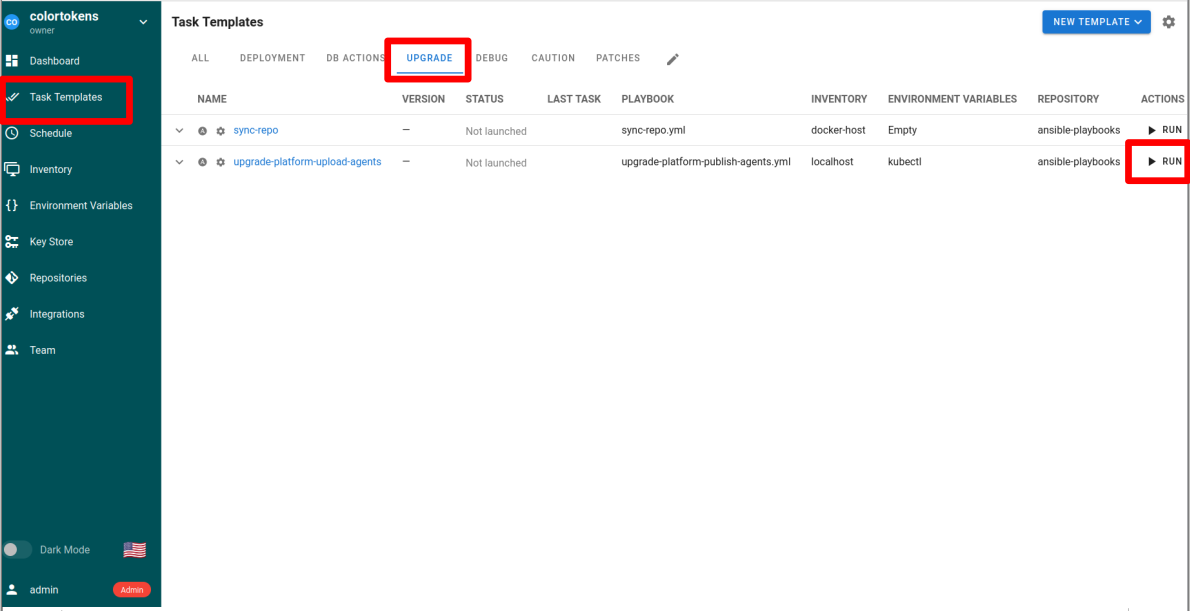
In case of failure please check the logs in the playbook console window
Patches for 25.2 upgrade only
- Apply the path for semaphore VM
cd $HOME/onprem-infrastructure/scripts
bash patch-semaphore-vm.sh
- Patch the DB VMS (Only for CT managed DB nodes)
- Login to semaphore UI at
http://registry-<colortokens>.<your-domain-name>.com:3000- Default username. password is admin/colors321
- Navigate to Task Templates >> PATCHES tab
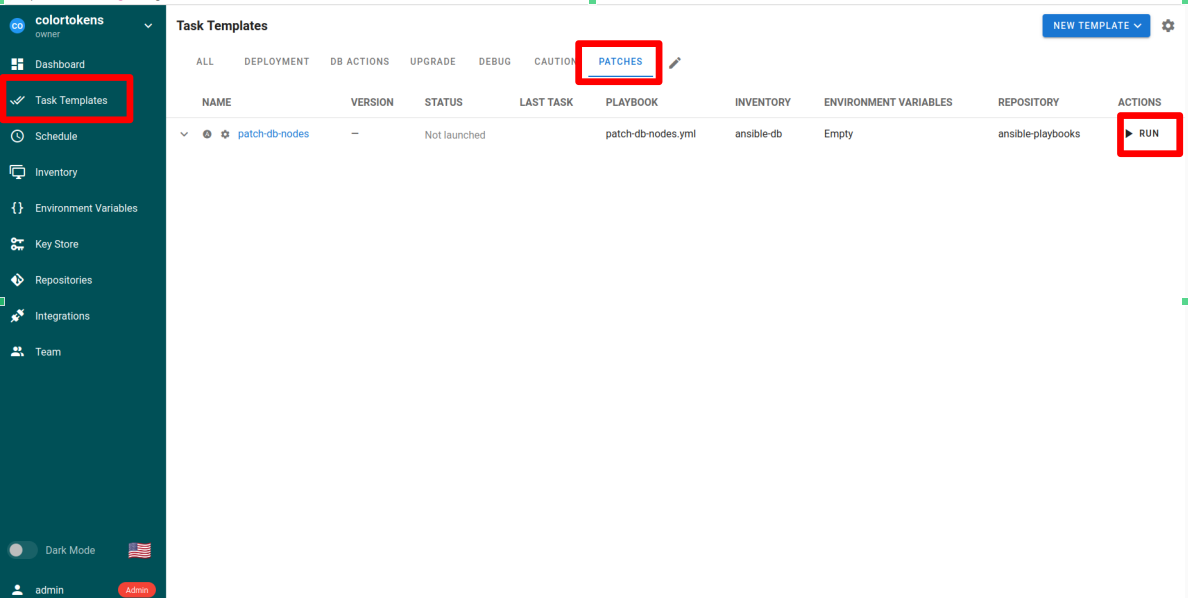
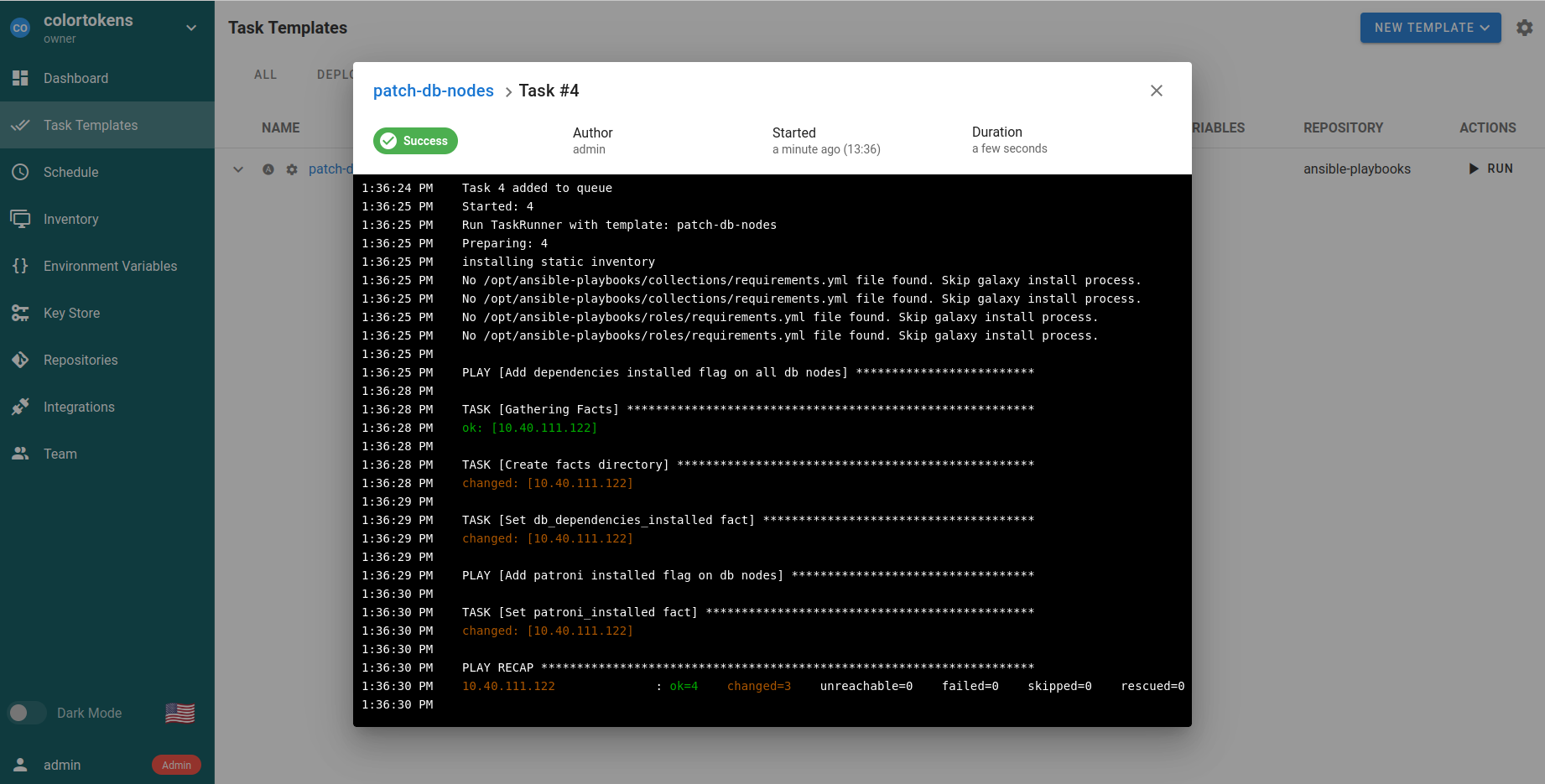
- Run the patch-db-nodes playbook
- Login to semaphore UI at
Agent Upgrades
Agent upgrades on the on‑prem platform follow the same workflow as the SaaS platform. Use the Xshield portal to upgrade agents (manual or auto‑upgrade) exactly as described in the agent deployment guide.
- Guide: Agent Deployment and Upgrade
- Includes: Manual upgrade via portal and optional auto‑upgrade