Interactive Storage Access
Use this flow to grant or revoke controlled access to flow logs stored in Amazon S3 using the Xshield portal.
When onboarding an AWS account, make sure flow logs storage access is disabled initially:
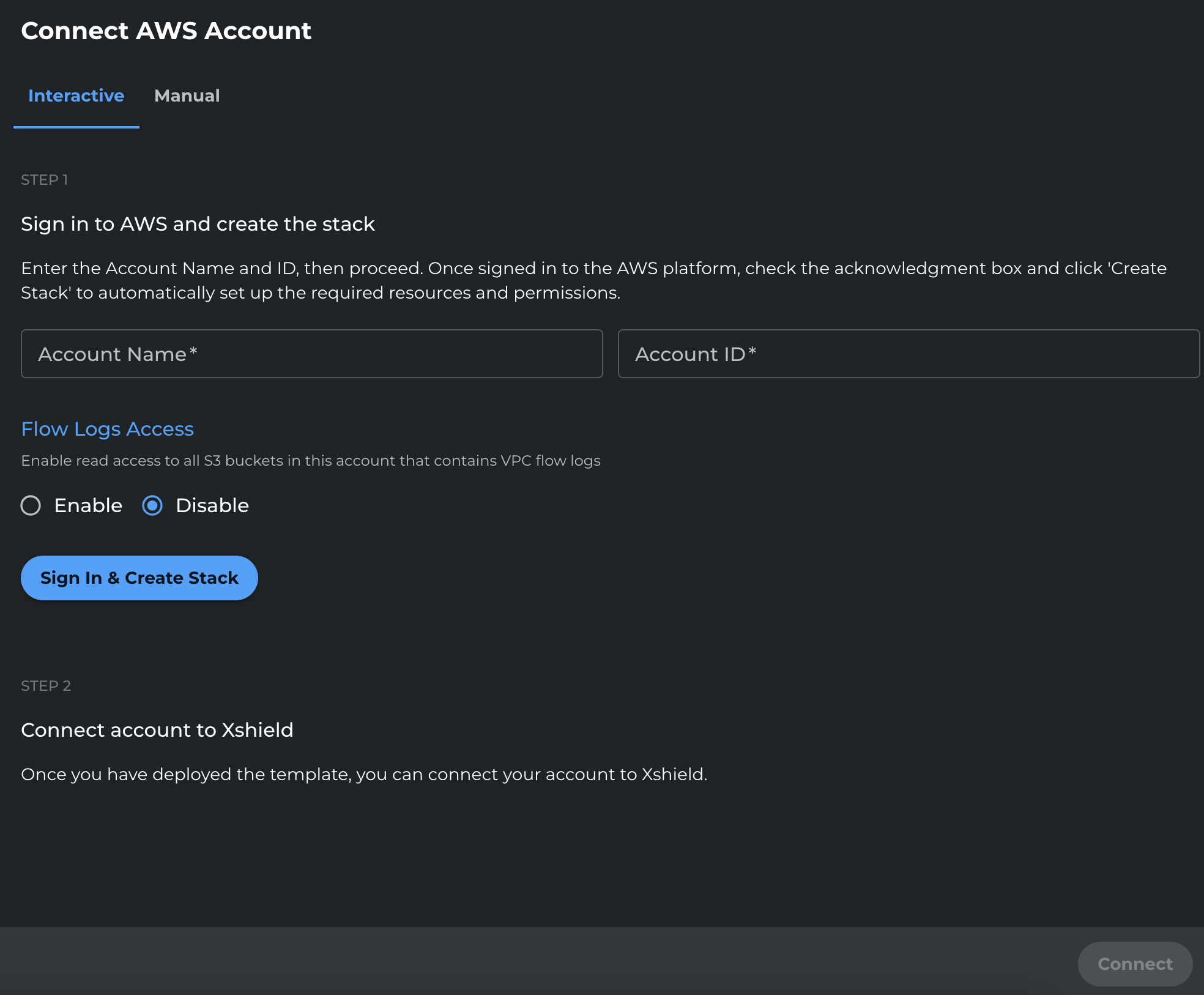
Grant Storage Access
-
In the Xshield portal, go to Sensors → Cloud Connectors.
-
Select the AWS account you want to grant storage access to.
-
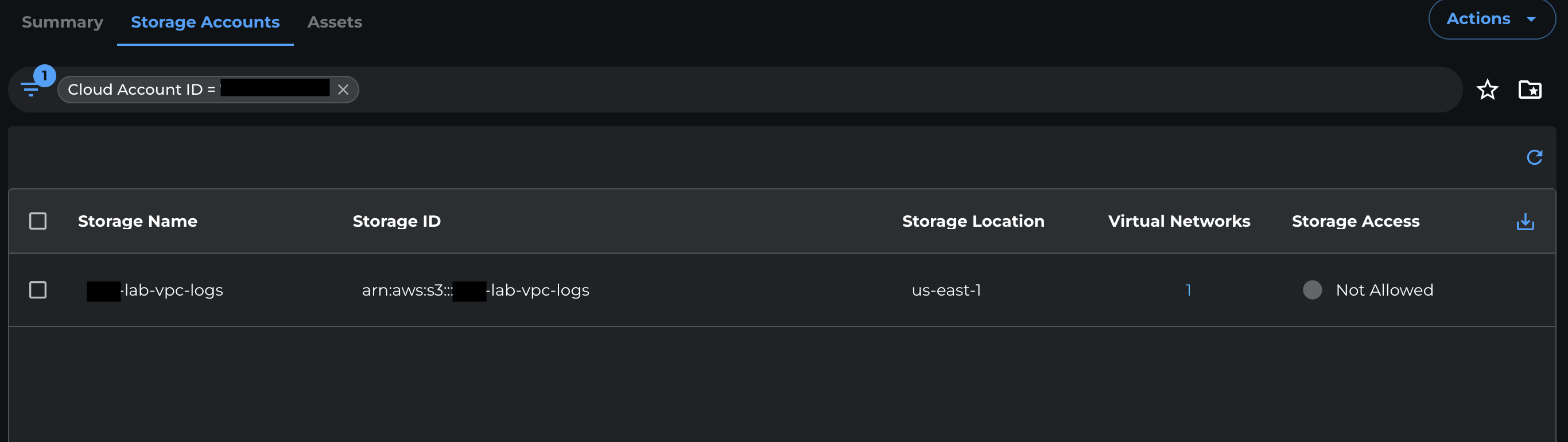
Open the Storage Accounts tab.
-
Select the S3 bucket you want to grant access to.
-
From the Storage access dropdown, select Grant.

-
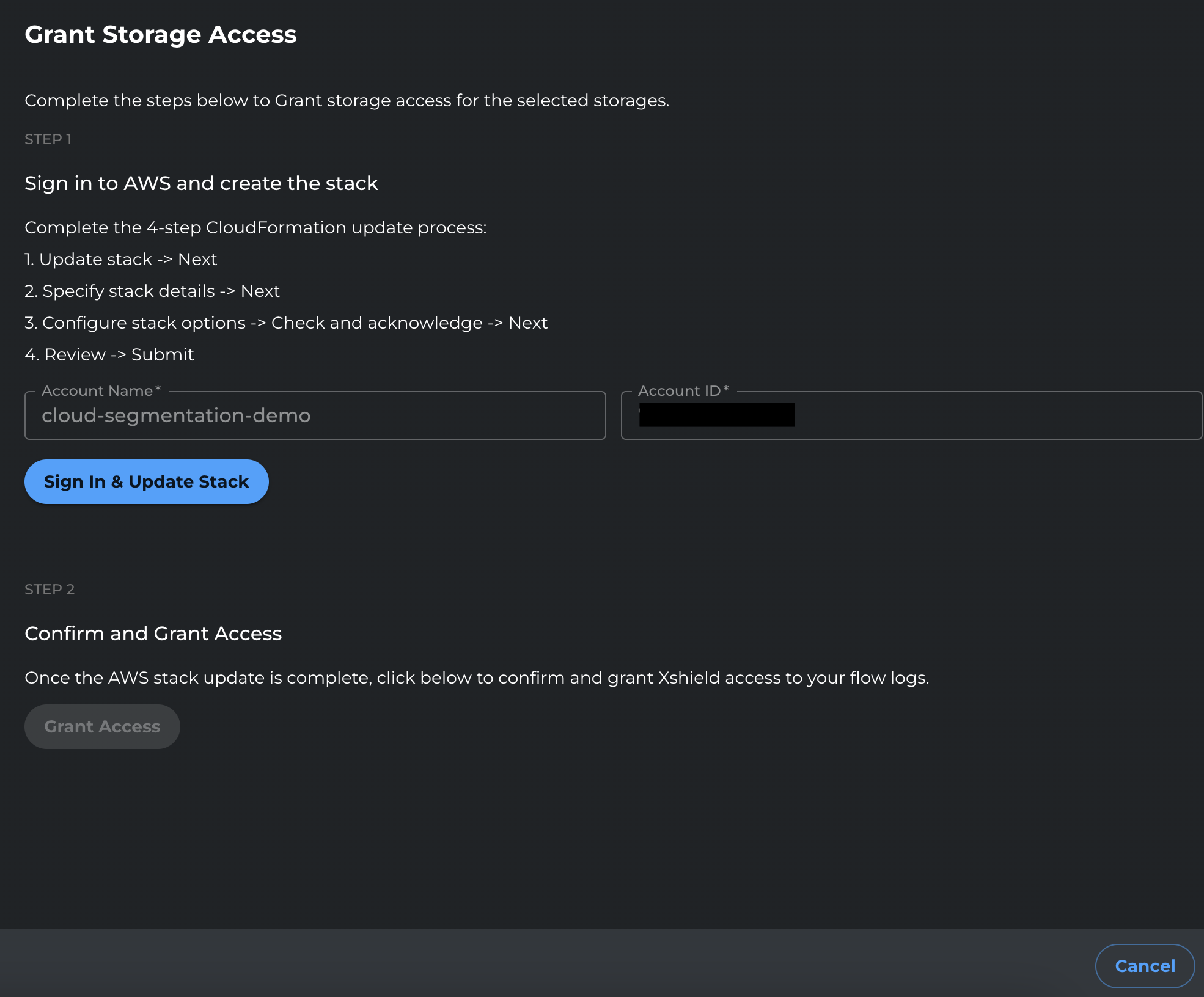
Click Sign in and update stack.
-
You will be redirected to AWS. Sign in with credentials that can update the CloudFormation stack.
-
In CloudFormation, click Next through the stack update pages.
-
On the final review page, review the changes, select the I acknowledge checkbox, and click Submit.
-
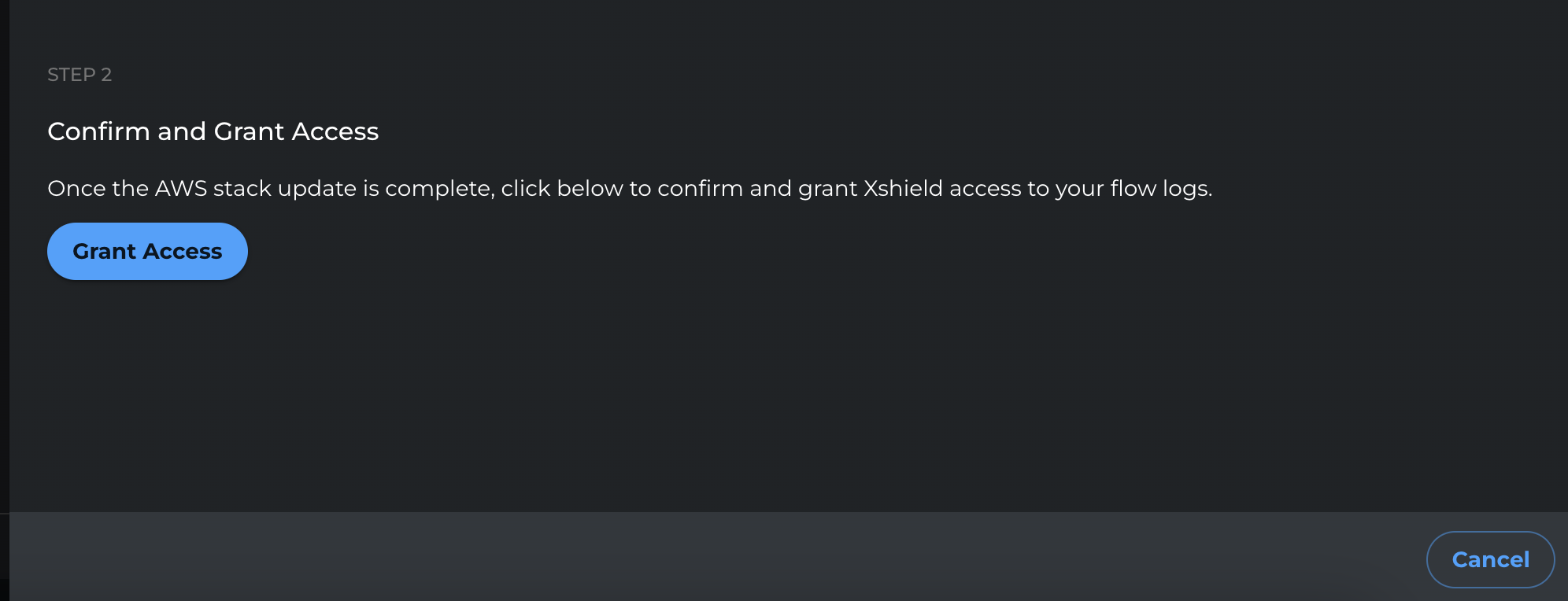
After the stack update completes, return to the Xshield portal and click Grant Access to finalize the change.
Revoke Storage Access
-
In the Xshield portal, go to Sensors → Cloud Connectors.
-
Select the AWS account you want to revoke storage access from.
-
Open the Storage Accounts tab.
-
Select the S3 bucket you want to revoke access from.
-
From the Storage access dropdown, select Revoke.

-
Click Sign in and update stack.
-
You will be redirected to AWS. Sign in with credentials that can update the CloudFormation stack.
-
In CloudFormation, click Next through the stack update pages.
-
On the final review page, review the changes, select the I acknowledge checkbox, and click Submit.
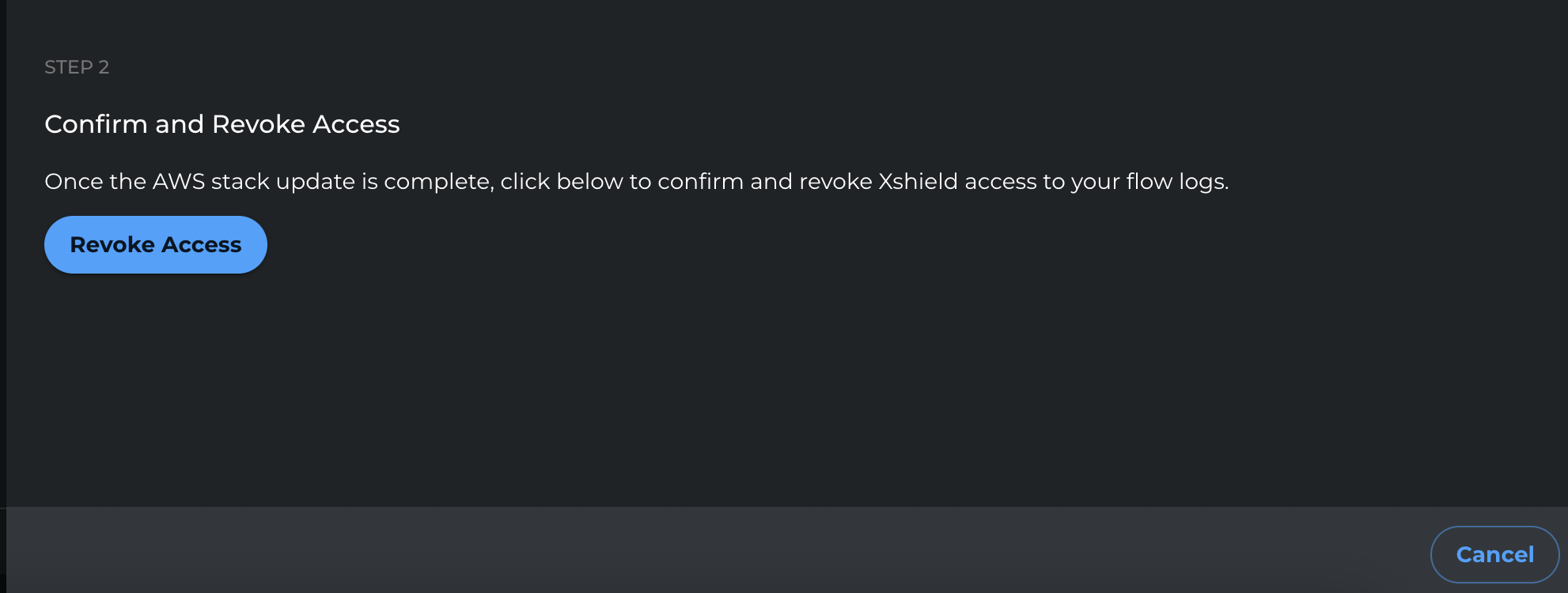
-
After the stack update completes, return to the Xshield portal and click Revoke Access to finalize the change.