Azure Decommissioning
Introduction
This guide walks you through the step-by-step process for decommissioning a subscription from the Xshield Cloud Connector.
Prerequisites
Before you begin, ensure you have:
- An active Xshield account with access to the management portal
Decommissioning Process
Step 1: Navigate to Cloud Connector
- Log in to the Xshield management portal
- Navigate to Sensors in the left navigation menu
- Select Cloud Connector from the sensors section
Step 2: Start Decommissioning
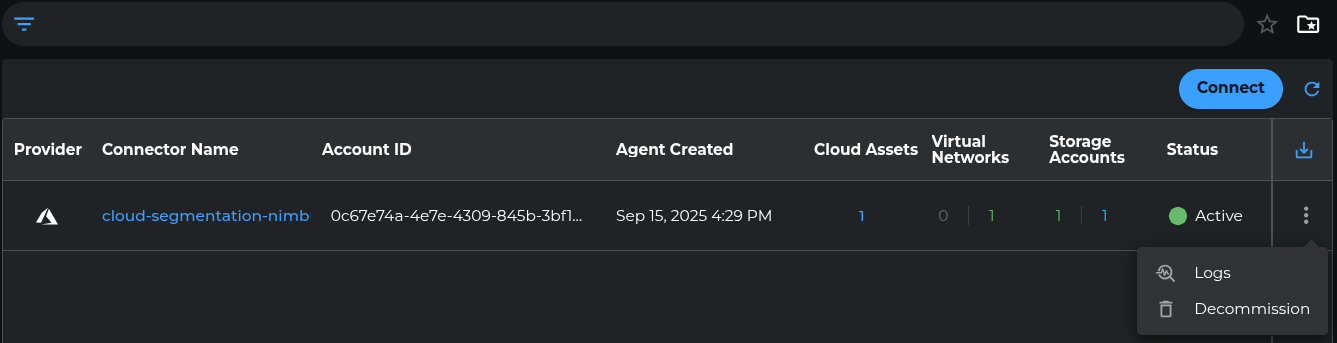
From the list of connected subscriptions, select the subscription you want to decommission.
Click the three vertical dots at the end of the subscription row. From the dropdown menu, select "Decommission".
Step 3: Initiate Decommission
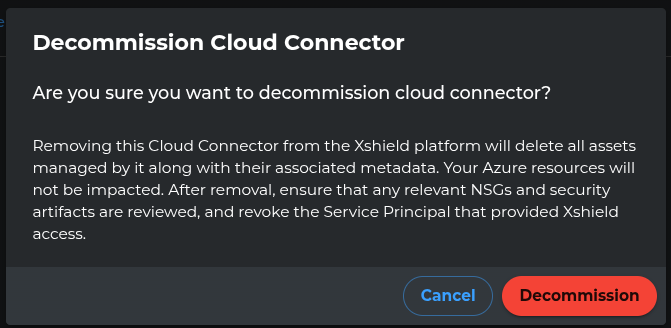
Click the "Decommission" button to start removing this Cloud Connector from the Xshield platform.
This action will delete all assets managed by it along with their associated metadata.
Post-Decommission
After successful decommissioning:
- The Azure subscription will be removed from the Xshield platform
- It will no longer appear in the list of connected subscriptions
